10.1 Types and Functions of Visual Aids

📞Intro to Public Speaking Unit 10 Review
10.1 Types and Functions of Visual Aids
📞 Intro to Public Speaking
Types of visual aids
Visual aids turn abstract ideas into something your audience can actually see and process. They help people understand complex information faster, remember it longer, and stay engaged throughout your presentation. This section covers the main types of visual aids, what they're good for, and how to choose the right one.

Top images from around the web for Charts, graphs, and diagrams
Chapter 3 Data Visualisation | Data Skills for Reproducible Science View original
Is this image relevant?
Exploratory Data Analysis View original
Is this image relevant?
Scatterplots (2 of 5) | Concepts in Statistics View original
Is this image relevant?
Chapter 3 Data Visualisation | Data Skills for Reproducible Science View original
Is this image relevant?
Exploratory Data Analysis View original
Is this image relevant?
Charts, graphs, and diagrams
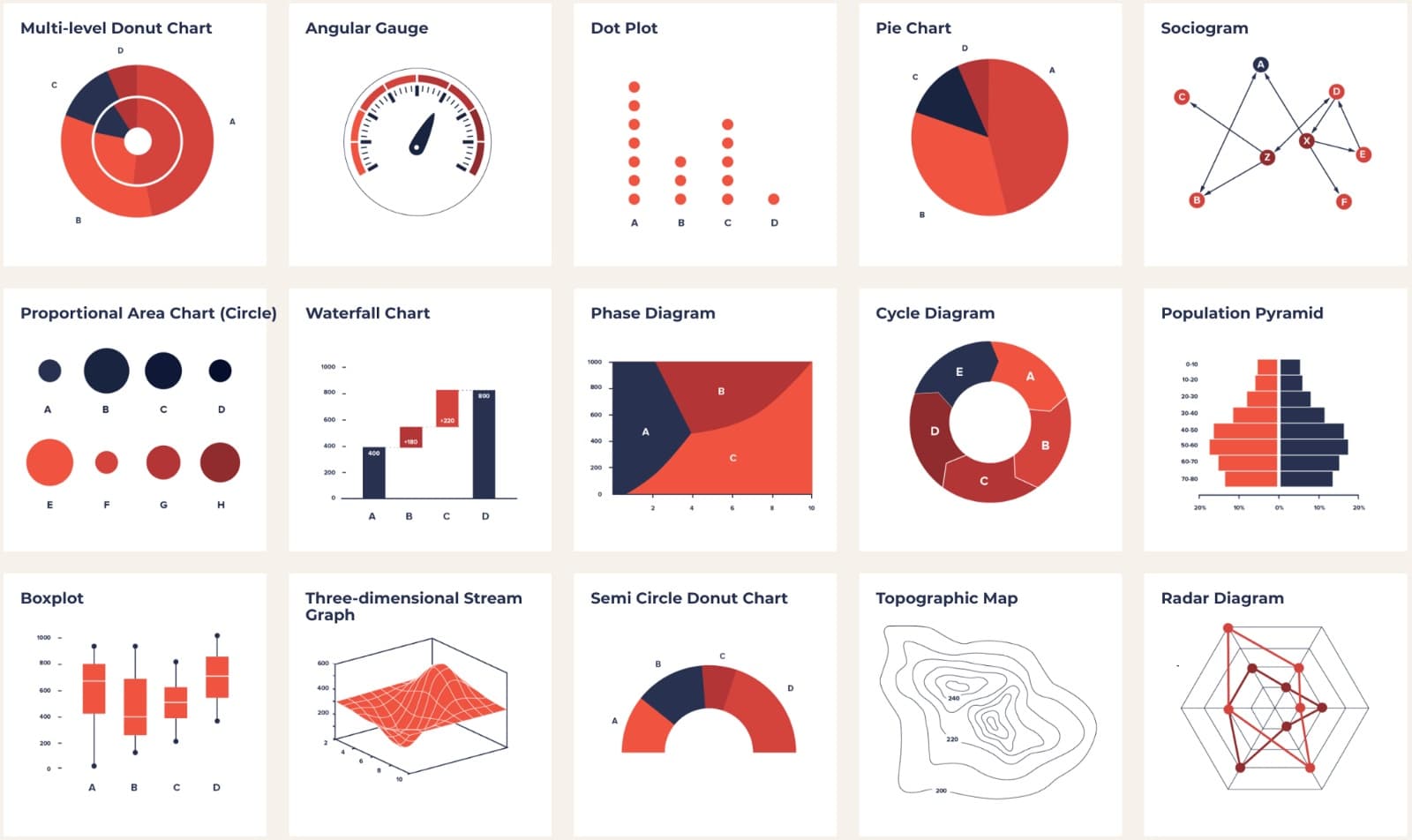
Charts and graphs are your go-to tools for presenting numerical data and showing relationships between variables.
- Bar charts compare values across categories (e.g., sales figures for five different products)
- Pie charts display parts of a whole (e.g., how a budget is divided across departments)
- Line graphs illustrate trends over time (e.g., monthly website traffic over a year)
- Scatter plots reveal correlations between two variables (e.g., study hours vs. exam scores)
Diagrams and flowcharts work differently. Instead of showing data, they visually represent processes, hierarchies, or how concepts relate to each other. An organizational chart shows who reports to whom in a company. A flowchart walks through a decision-making process step by step. A mind map branches out from a central idea to organize brainstorming.
Maps display geographical or spatial information. A simple location map pinpoints a specific place, while a thematic map (like a choropleth) uses color shading to show how data varies across regions, such as population density by state.
Images, videos, and physical objects
Photographs give your audience a direct look at real-world subjects. A product photo can showcase design features far better than a verbal description, and a landscape image can ground an abstract geographical concept in something concrete.
Videos and animations are especially useful for demonstrating movement or change. A short tutorial video can walk through a procedure step by step, and a 3D animation can make invisible processes visible, like how molecules interact during a chemical reaction. Keep video clips short and purposeful; a 30-second clip that illustrates your point beats a 3-minute clip that loses your audience.
Physical objects and models let your audience see (and sometimes touch) a three-dimensional representation. Think product prototypes, architectural models, or a scale model of the solar system. These work best in smaller settings where everyone can get a close look.
Digital presentation tools
Presentation software lets you combine multiple visual aid types into one cohesive package.
- Microsoft PowerPoint is the most widely used option for creating linear slide decks
- Google Slides works similarly but allows real-time collaboration, which is helpful for group projects
- Prezi uses a zooming canvas instead of traditional slides, which can work well for showing how ideas connect spatially
Beyond slide software, interactive whiteboard tools like Miro let you draw, annotate, and brainstorm live during a presentation. Data visualization tools like Tableau or Flourish generate dynamic, interactive charts that go beyond what basic slide software can produce. For most intro-level presentations, though, standard slide software will cover your needs.
Purpose and benefits of visual aids
Enhancing comprehension and retention
Visual aids reinforce your spoken words by giving the audience a second channel for processing information. A diagram of the water cycle, for example, clarifies what a verbal description alone might leave fuzzy.
This matters because of multi-sensory learning: when people both hear and see information, they retain significantly more of it. Research suggests people remember around 65% of information presented both visually and verbally, compared to roughly 10% when they only hear it.
Visuals also let you condense large amounts of data into digestible formats. A single chart can summarize a trend that would take several minutes to explain verbally, and a flowchart can break a complicated process into clear, sequential steps.

Maintaining audience engagement
Even an interested audience will lose focus during long stretches of unbroken talking. Visual aids provide variety and give listeners natural mental "reset points" throughout your presentation.
- Switching between verbal content and visuals prevents monotony
- Interactive elements like live polls or audience questions encourage active participation rather than passive listening
- Powerful images can evoke emotional responses that make your content more memorable and impactful (think of a before-and-after photo showing the effects of deforestation)
Strategic placement matters here. Don't cluster all your visuals in one section. Spread them throughout so your audience stays engaged from start to finish.
Enhancing presenter credibility
Well-designed visuals signal that you've prepared thoroughly and care about your audience's experience. Sloppy or cluttered slides do the opposite.
Visuals also strengthen your arguments by providing evidence your audience can evaluate directly. Displaying a data visualization alongside a statistical claim is more persuasive than just stating the number. Showing an expert quote on screen reinforces that you've done your research.
Consistent design choices, like using the same color palette and fonts throughout, create a polished, professional impression that builds trust with your audience.
Choosing the right visual aids
Matching content to visual format
The type of information you're presenting should drive your choice of visual aid.
- Numerical data and comparisons → Use charts and graphs. Bar charts work for comparing categories (sales by region). Line graphs work for trends over time (enrollment numbers over five years).
- Processes and relationships → Use diagrams and flowcharts. A flowchart is perfect for walking through a decision-making process or showing how a bill becomes a law.
- Geographical or spatial information → Use maps. A choropleth map can show election results by county, or a route map can illustrate a supply chain.
- Real-world examples or demonstrations → Use photographs, videos, or physical objects.
If you're unsure, ask yourself: What do I need my audience to see that they can't get from my words alone?
Considering audience and context
Your audience's knowledge level should shape how complex your visuals are. A general audience benefits from simplified infographics with clear labels. An audience of specialists can handle detailed technical diagrams with discipline-specific notation.
The physical setting matters too. In a large auditorium, you need high-contrast visuals with large text that people in the back row can read. In a small workshop, you can use interactive elements, pass around physical objects, or work with a whiteboard.
Be mindful of cultural sensitivity when selecting images. Use diverse representation in people-focused visuals, and remember that color symbolism varies across cultures (white signals mourning in some cultures, celebration in others).

Balancing visual elements
More visuals doesn't automatically mean a better presentation. A few well-chosen visuals will outperform a flood of cluttered slides.
- Keep text minimal. Limit bullet points to 3–5 per slide. If you're putting full paragraphs on a slide, you're using it as a script, not a visual aid.
- Combine visual types thoughtfully. Pairing a chart with a simple icon or illustration can aid comprehension, but stacking too many elements on one slide creates confusion.
- Stay consistent. Pick a color palette and stick with it. Use no more than 2–3 complementary fonts. Consistent design helps your audience focus on your content instead of adjusting to a new layout every slide.
Visual aids for engagement and understanding
Leveraging cognitive processing
The human brain processes visual information dramatically faster than text. That's why a well-chosen icon, diagram, or image can communicate in seconds what might take a full paragraph to explain verbally.
To take advantage of this, break complex information into manageable visual chunks. A multi-stage process becomes clearer as a step-by-step diagram than as a long verbal explanation. Hierarchical charts help audiences see how smaller ideas fit into bigger categories.
You can also create visual hierarchies to guide your audience's attention. Larger elements and bolder colors naturally draw the eye first, so use size and color intentionally to emphasize what matters most on each slide.
Catering to diverse learning styles
Not everyone in your audience processes information the same way. Some people absorb spoken words easily; others need to see it visually; still others learn best through hands-on interaction.
Using visual aids alongside your spoken narration means you're reaching more of your audience more effectively. You can go further by offering the same information in multiple formats: present data as both a chart and a table, or provide text descriptions alongside visual elements. In interactive settings, tools like live polls or clickable infographics let audience members engage actively rather than just watching.
Enhancing long-term recall
If you want your audience to remember your key points days or weeks later, visual associations are one of the strongest tools available.
- Metaphorical images make abstract ideas concrete. A visual of a leaky bucket can represent customer churn far more memorably than a definition alone.
- Visual narratives use storytelling structure. Before-and-after comparisons show impact. Timelines illustrate cause and effect.
- Recurring icons build recognition. If you assign a specific icon to each major theme, your audience starts associating that symbol with the concept automatically.
Consider providing a visual summary your audience can take with them: a one-page infographic of your main points or a visual glossary of key terms. This extends the life of your presentation well beyond the room.
See Fiveable more often in Google
Mark Fiveable as a preferred source and Google is more likely to show you our guides in Top Stories, with a "preferred" badge in AI Mode and AI Overviews.