10.2 Designing Effective Visual Aids

📞Intro to Public Speaking Unit 10 Review
10.2 Designing Effective Visual Aids
📞 Intro to Public Speaking
Effective Design Principles
Visual aids can make or break your presentation. They're not decoration; they're tools that help your audience understand and remember your message. Designing effective visuals means making deliberate choices about layout, color, text, and structure so that every element supports what you're saying.

Top images from around the web for Visual Hierarchy and Composition
Unit 35: Visual Aids – Communication Skills View original
Is this image relevant?
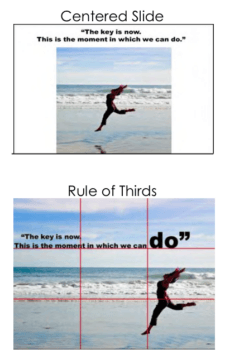
Slide Layout | Public Speaking View original
Is this image relevant?
How to Use the Rule of Thirds Effectively in Graphic Design View original
Is this image relevant?
Unit 35: Visual Aids – Communication Skills View original
Is this image relevant?
Slide Layout | Public Speaking View original
Is this image relevant?
Visual Hierarchy and Composition
Visual hierarchy is how you organize elements on a slide or poster so your audience knows where to look first, second, and third. Without it, viewers don't know what matters most.
A few core principles make this work:
- Rule of thirds: Imagine your slide divided into a 3×3 grid. Placing key elements along those grid lines or at their intersections tends to look more balanced and natural than centering everything.
- Contrast: Differences in size, color, or shape draw the eye. A large, bold headline against smaller body text instantly tells the viewer what's most important.
- White space: Empty space isn't wasted space. It gives your audience's eyes a break and directs attention to what's actually on the slide. Cramming every inch with content makes everything harder to read.
- Proximity: Items placed close together are perceived as related. Group your heading with its supporting bullet points, and separate unrelated ideas with space between them.
- Balance: You can arrange elements symmetrically (evenly mirrored) or asymmetrically (uneven but still visually stable). Either works, as long as the slide doesn't feel lopsided.
Unity and Consistency
When you're using multiple slides or visual aids, they should look like they belong together. This means establishing a consistent set of design choices and sticking with them throughout.
- Pick a color scheme and use it on every slide.
- Choose one or two fonts and apply them consistently for headings, subheadings, and body text.
- Keep spacing, alignment, and layout patterns uniform from slide to slide.
- If you use icons or recurring visual elements, make sure they match in style. Mixing cartoon icons with photographic images, for example, looks disjointed.
Consistency signals professionalism and makes your presentation easier to follow because the audience doesn't have to relearn your layout every time you advance a slide.
Visual Aid Aesthetics
Color Theory and Psychology
Color does more than make slides look nice. It influences how your audience feels and what they pay attention to.
Three common color schemes to know:
- Complementary: Colors opposite each other on the color wheel (like blue and orange). High contrast, great for making elements pop.
- Analogous: Colors next to each other on the color wheel (like blue, blue-green, and green). These feel harmonious and are easy on the eyes.
- Monochromatic: Different shades and tints of a single color. Clean and unified, though sometimes less dynamic.
Colors also carry psychological associations. Blue tends to convey trust and calm. Red signals urgency or excitement. Green suggests growth or nature. Keep in mind that these associations vary across cultures. In many Western contexts, white represents purity, but in some East Asian cultures, it's associated with mourning. If you're speaking to a diverse audience, research how your color choices might be interpreted.
Use color strategically: highlight key data points in a bold color, or color-code categories so your audience can track related information across slides.

Typography and Layout
Your font choices affect both readability and tone.
- Serif fonts (like Times New Roman or Georgia) have small strokes at the ends of letters. They tend to feel traditional and formal.
- Sans-serif fonts (like Arial or Helvetica) lack those strokes and feel cleaner and more modern. They're generally easier to read on screens, which makes them a strong default for presentations.
If you pair two fonts, pick ones that complement rather than compete. A common approach is using a sans-serif font for headlines and a serif font for body text, or two different sans-serif fonts with distinct weights.
For layout, guide the viewer's eye in a logical flow, typically left to right and top to bottom in English-language presentations. Grid systems help you keep content aligned and orderly across slides.
A few readability details that matter more than you'd think:
- Keep line length manageable. Text that stretches across the entire width of a slide is hard to track.
- Use generous line spacing so text doesn't feel cramped.
- Make sure your font size is large enough for the back of the room. A good minimum for body text on projected slides is around 24–28 point.
Clarity and Conciseness in Visual Aids
Simplification and Data Visualization
The simplicity principle is straightforward: remove anything that doesn't serve your message. Every extra graphic, decorative border, or unnecessary animation is competing for your audience's attention.
When you need to present data, choose the right visualization:
- Bar charts work best for comparing quantities across categories (e.g., sales by region).
- Line graphs show trends over time (e.g., enrollment numbers across five years).
- Pie charts display parts of a whole, but only when you have a small number of slices. More than five or six segments and they become hard to read.
- Infographics combine icons, short text, and simple graphics to summarize complex processes or statistics.
Icons and symbols can replace blocks of text. A simple envelope icon next to contact information communicates instantly without needing a label. Always include clear legends and labels on charts so your data speaks for itself.
Information Structure and Readability
How you organize information on a visual aid matters just as much as what information you include.
- Use clear, concise headings so viewers can orient themselves quickly.
- Bullet points and numbered lists make key information scannable. But keep bullets short; if each one is a full paragraph, you've lost the benefit.
- Chunk your content into small, digestible sections rather than presenting a wall of text. Three to five bullet points per slide is a solid target.
- Progressive disclosure means revealing information in stages rather than all at once. In a slideshow, this could mean using animations to bring in one point at a time so your audience focuses on what you're currently discussing.
- Maintain strong contrast between text and background. Dark text on a light background (or vice versa) is essential. Light gray text on a white background might look sleek on your laptop, but it'll be invisible from the fifth row.

Accessibility and Inclusivity in Visual Aids
Designing for accessibility isn't just a nice gesture. It ensures your message actually reaches everyone in your audience.
Visual Accessibility
- Color contrast should meet WCAG (Web Content Accessibility Guidelines) standards. High contrast between text and background ensures readability for people with visual impairments.
- Add alternative text (alt text) to images and graphics. This is a brief written description that screen readers can read aloud for audience members who are blind or have low vision.
- Choose font sizes large enough for various viewing distances. What looks fine on your laptop may be unreadable projected in a large room.
- Don't rely on color alone to convey meaning. If your bar chart uses red for "over budget" and green for "under budget," someone who is colorblind may not see the difference. Add patterns, textures, or labels alongside color coding.
- For detailed images or complex diagrams, make sure viewers can zoom in or that you provide a close-up version.
Cultural and Linguistic Considerations
- Be thoughtful about symbols, imagery, and colors that may carry different meanings across cultures. A thumbs-up gesture, for instance, is positive in many Western countries but offensive in parts of the Middle East.
- If your audience includes non-native speakers, favor universally understood symbols and straightforward language over idioms or culture-specific references.
- Use diverse representations in your images and illustrations so your visuals reflect your audience.
- For audiences that read right-to-left (such as Arabic or Hebrew speakers), consider how your layout direction affects comprehension.
Multimedia Accessibility
If your visual aids include audio or video, a few additional steps make them accessible to everyone:
- Add closed captions or subtitles to video content. This helps audience members who are deaf or hard of hearing, and it also helps in noisy environments.
- Provide transcripts for any audio content.
- Ensure video content has enough visual contrast that important elements are clearly visible.
- Give viewers control over playback: pause, rewind, and volume adjustment.
- Offer alternative formats when possible, such as a text-based summary of a video's key points or static images that capture the main visuals.
See Fiveable more often in Google
Mark Fiveable as a preferred source and Google is more likely to show you our guides in Top Stories, with a "preferred" badge in AI Mode and AI Overviews.