Tour the Teacher Workspace
Find Assignments, Inbox, Insights, Classes, Settings, and the two ways to start new work.
Quick answer
Open Assignments to see everything you have sent and everything that came back. Use the left menu to move between Assignments, Inbox, Insights, Classes, and Settings. Create assignment starts new student work; Import and grade brings in work students already completed.
What to do
Start in Assignments
Open Assignments from the teacher menu. This is your main list of drafts, active assignments, imported grading sessions, and handed-back work.
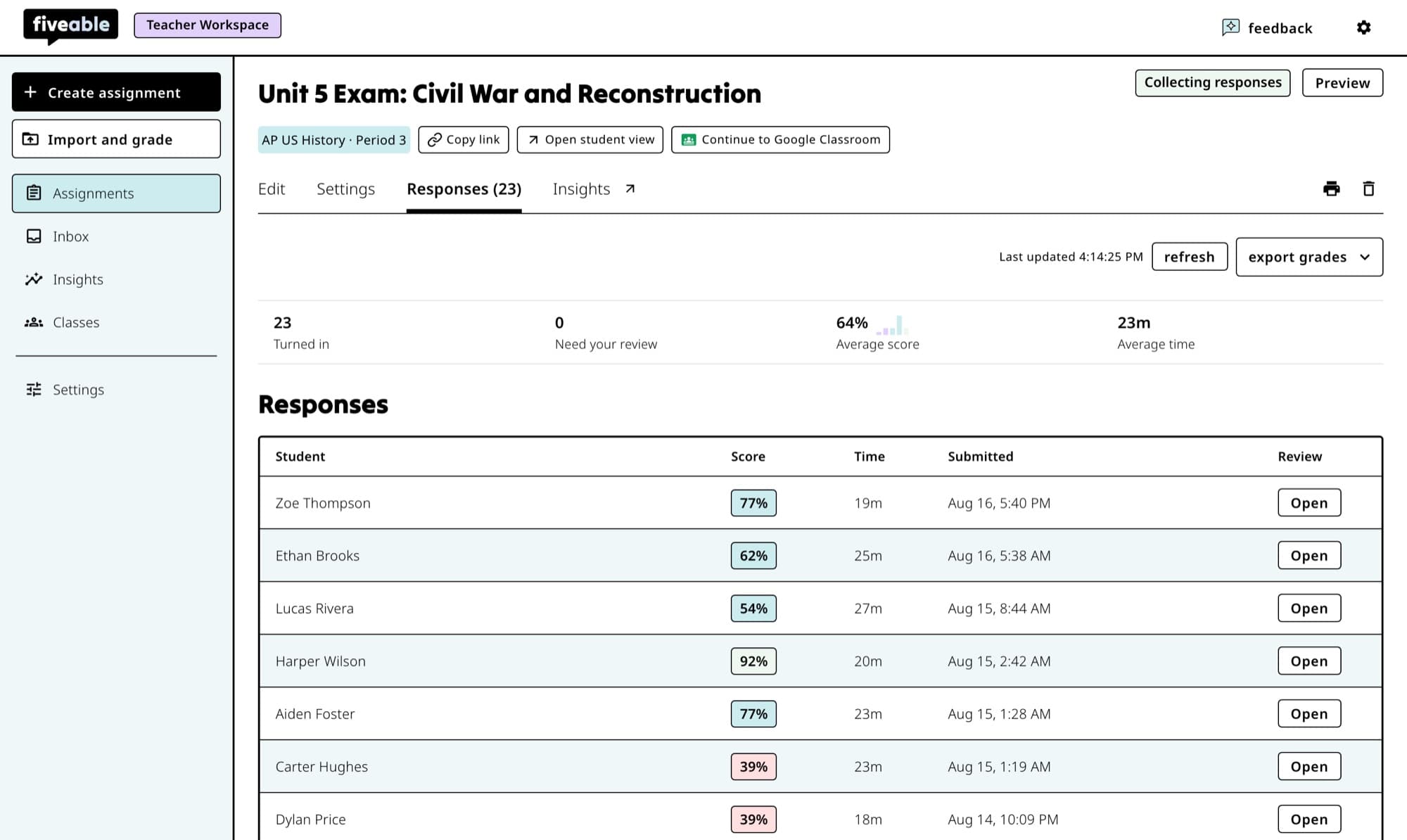
The Teacher Workspace keeps creation, review, results, classes, and settings in one place. Choose how to start
Select Create assignment when students will complete new work on Fiveable. Select Import and grade when you already have responses in Google Classroom, Google Drive, an upload, a scan, or text you can paste.
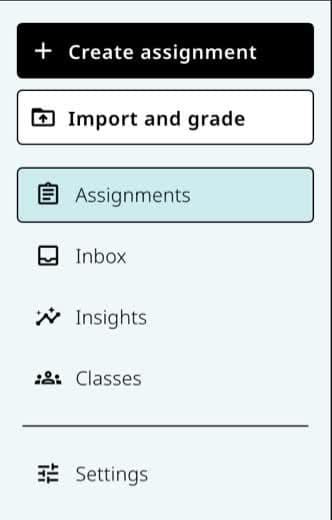
Use Create assignment for new Fiveable work or Import and grade for responses students already completed. Use Inbox for work that needs you
Inbox combines responses that need review with grades that are ready to return or export. The badge shows how many items are waiting.
Use Insights and Classes for the bigger picture
Insights shows results across assignments, classes, subjects, and time periods. Classes holds class details and rosters. Settings controls your defaults for future assignments.
Open Print center when you need paper
Print center stays in the bottom section of the left menu on desktop. It opens Fiveable's printable and Google export tools.
Good to know
- Teacher Workspace is the teacher-facing part of Fiveable. Student help will live separately.
If something is not working
I only see the student site.
Open /assignments directly. If you still do not see the Teacher Workspace, confirm that you are signed in to the teacher account you expect to use.
I do not see Print center on my phone.
The compact teacher menu focuses on the main rooms. Open /printables directly or use the main site menu.
Did this guide answer your question?
Keep going
Create your first assignment with guided setup
Import and grade work students already completed
Use Inbox to find work that needs attention