Import and grade work students already completed
Bring existing responses into Grade work, review the first scores, and export the result.
Quick answer
Select Import and grade in the Teacher Workspace, or Grade finished work from the assignment-type page. Complete Responses, Subject & question type, and The prompt. Start grading, review every response, approve the results, and export the grades.
Before you start
- Have the student responses ready in Google Classroom, Google Drive, a supported upload, a scan, or text you can paste.
- Know the AP® subject, question type, prompt, and point total.
What to do
Open Grade work
Select Import and grade in the left menu, or choose Grade finished work from Create assignment.
Add Responses
Paste, upload, or scan student work, or connect Google Drive or Google Classroom and select the source available there. Check that each response has the right student name.
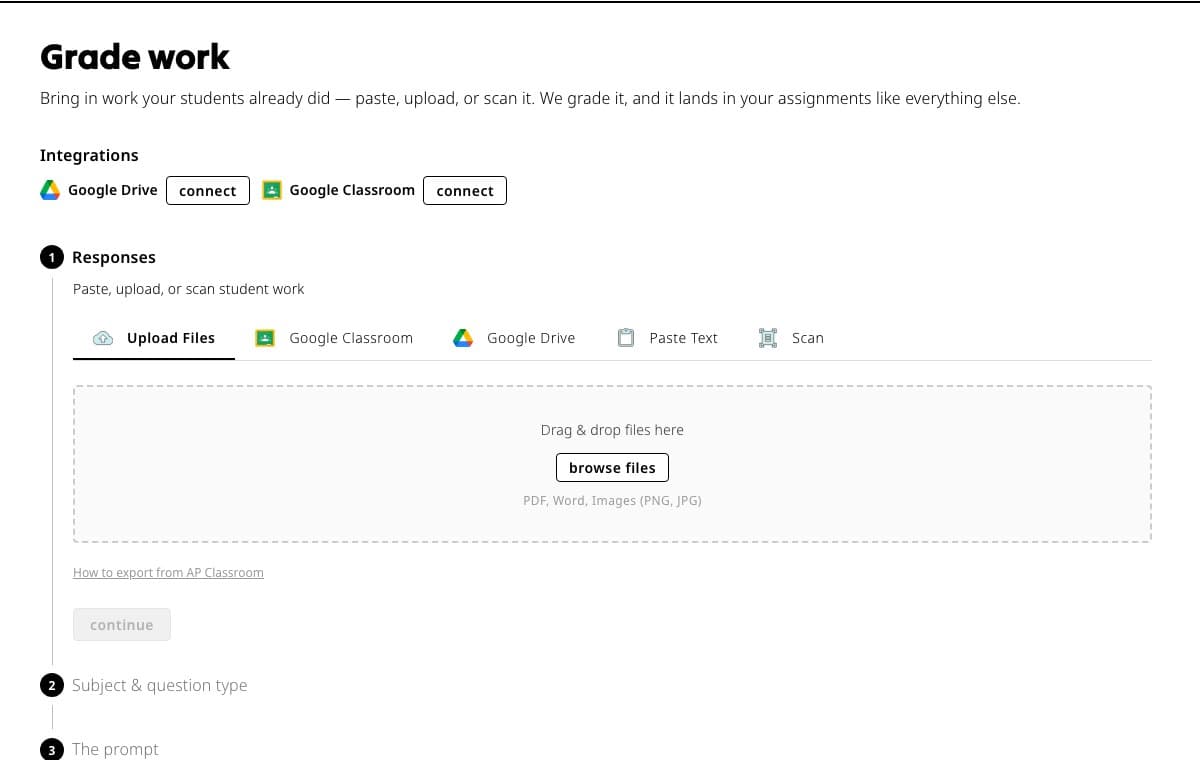
Start with the source that already contains the student work, then check the imported response list before continuing. Choose Subject & question type
Select the subject and the AP question type that matches the work. These choices determine which grading process Fiveable uses.
Add The prompt
Choose a Fiveable FRQ or add your own prompt. Enter the point total requested for your prompt before grading.
Review and approve
Open each result, compare it with the response and scoring evidence, adjust when needed, and approve it. You can approve all graded imports only after deciding that the remaining first scores are ready.
Export
When the set is approved, use Export from Inbox or the imported session.
If something is not working
Fiveable says to enter the point total.
Return to The prompt and enter the maximum number of points for the response, then start grading again.
Student names were not detected correctly.
Edit the names before relying on the export. Keep one student's response together and remove headers that could be mistaken for a name.
Did this guide answer your question?
Keep going
Paste, upload, scan, or import student responses
Review, approve, and export imported grades