Use Inbox to find work that needs attention
Review native assignments and imported grading from one queue.
Quick answer
Open Inbox in the Teacher Workspace. Use All inbox tasks, Needs review, or Ready to return or export to narrow the queue. Select Review for a student response, Hand back for a native assignment, or Export for approved imported grades.
What to do
Open Inbox
Select Inbox in the left menu. The badge shows how many tasks are waiting.
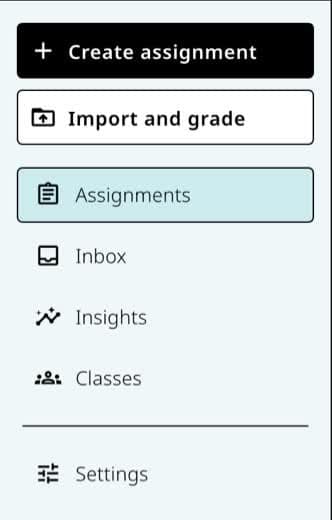
Open Inbox from the left menu when work is waiting for review, hand-back, or export. Choose a filter
Use All inbox tasks for the full queue, Needs review for responses that require you, or Ready to return or export for finished grading.
Open the next task
Select Review on a response. Saving or approving advances the queue so you can continue without returning to each assignment first.
Finish the class set
When native assignment grades are ready, select Hand back. For imported work, approve the grades and select Export.
If something is not working
Inbox says it is clear, but an assignment has responses.
Inbox only shows work that still needs review, hand-back, or export. Open the assignment's Responses tab to see every submission.
I only want one assignment.
Open that assignment's Responses tab and start review there. The Inbox link can also open a queue scoped to one assignment or imported session.
Did this guide answer your question?
Keep going
Find student responses inside an assignment
Review a response, adjust the score, and leave feedback