Older tool
Finish a quiz in the older Quiz Builder
Create a Google Forms or Google Docs quiz in the older export tool.
Quick answer
Open Quiz Builder, choose a subject, add one or more question rows, and enter Quiz Details. Select Export to Google Forms or Export to Google Docs. For new student work that you want to collect and grade in Fiveable, use Assignments instead.
Before you start
- Connect the Google account where you want the exported file to be created.
- Decide whether you need a Google Form for responses or a Google Doc for printing and editing.
What to do
Open Quiz Builder
Open the older Quiz Builder.
Choose a subject
Select the AP® subject for the questions you want to use.
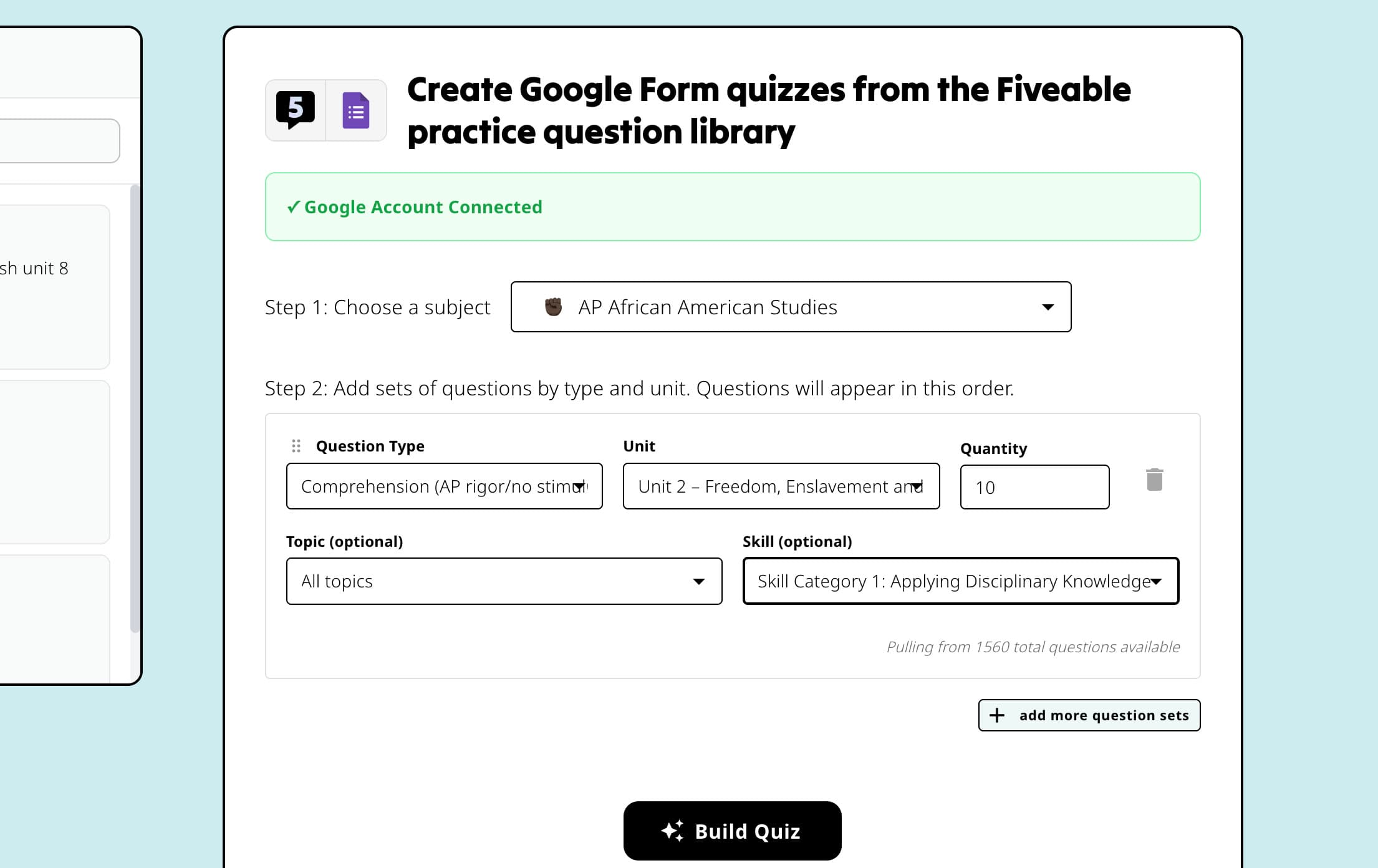
Choose the subject before adding question sets so the available units and questions match the course. Build the question rows
For each row, choose the Question Type, unit or topic, and question count. Select Add Question Group when you need another set of filters.
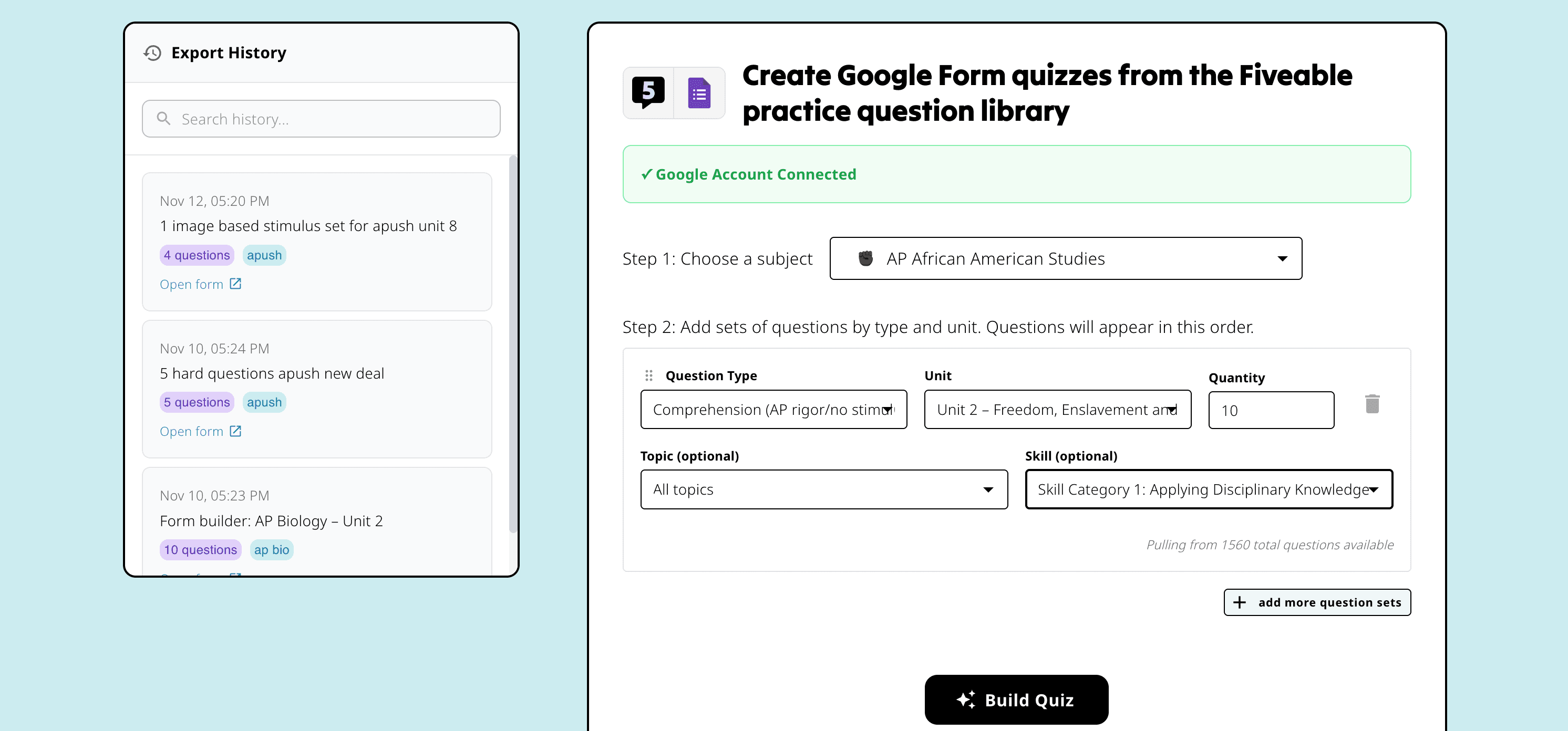
Quiz Builder keeps Export History beside the question-set controls used to build a Google quiz. Add Quiz Details
Enter a Quiz Title. Add the optional subtitle only when students need another line of context.
Export the quiz
Select Export to Google Forms or Export to Google Docs. Keep the page open while Fiveable creates the file, then select Open Quiz or Open Document.
Good to know
- Quiz Builder is an older export tool. It does not create a new assignment in the Teacher Workspace.
- Use Assignments when you want one place to publish work, collect responses, review scores, and hand grades back to students.
If something is not working
The export buttons ask you to connect Google.
Select Connect Google Account and sign in to the account where the file should be created, then try the export again.
A question row has no available questions.
Choose a broader unit or topic, reduce the question count, or use a different Question Type.
Did this guide answer your question?