Older tool
Find a Quiz Builder export
Reopen a Google Forms or Google Docs file from Export History.
Quick answer
Open Quiz Builder and look in Export History. Search by the words you used for the quiz, then select Open form or Open document. The exported file also remains in the Google Drive connected when you created it.
What to do
Open Quiz Builder
Open Quiz Builder with the same Fiveable account you used before.
Find Export History
Use the panel on the left side of the page.
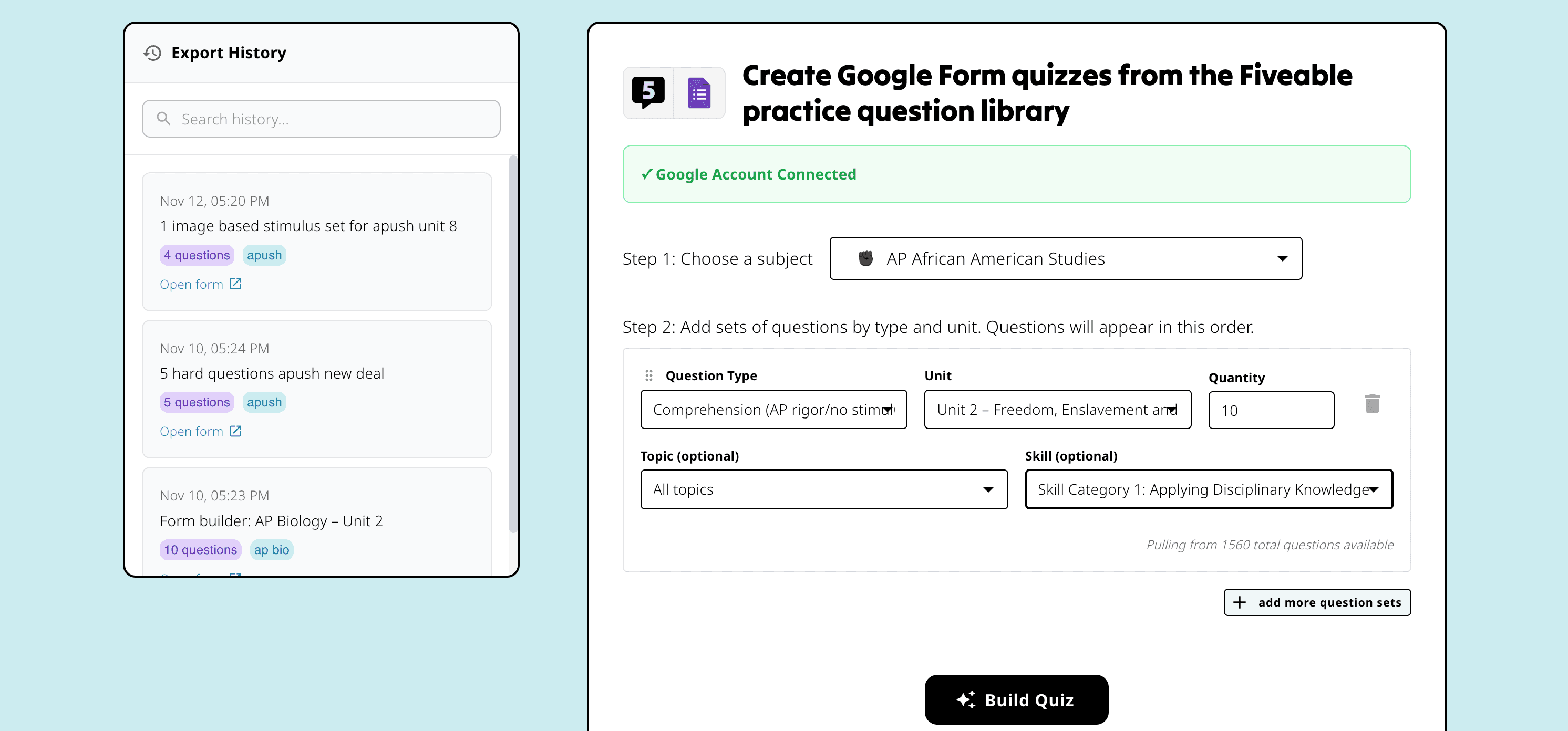
Export History stays in the left panel beside the quiz builder. Search the history
Enter part of the quiz title or request in Search history. Match the date, subject, and question count when several results look similar.
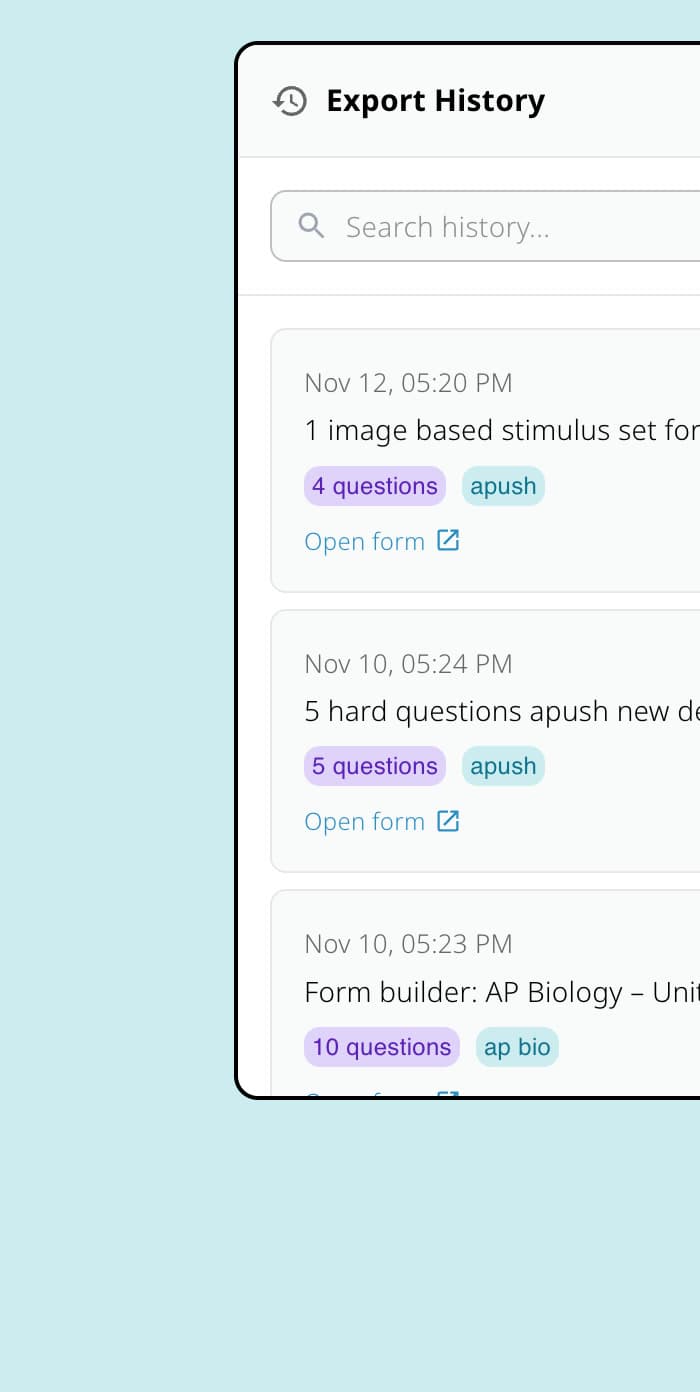
Search Export History, then use the date, title, subject, and question count to choose the right file. Open the Google file
Select Open form for a Google Forms export or Open document for a Google Docs export.
If something is not working
Export History says No export history yet.
Confirm that you are signed in to the Fiveable account that created the export. You can also search the connected Google Drive for the quiz title.
The Google file says you need access.
Switch to the Google account that was connected when the export was created, or request access from the file owner.
Did this guide answer your question?