Review a response, adjust the score, and leave feedback
Make the final grading decision for one student's response.
Quick answer
Open the assignment's Responses tab and select Review for the student. Read each section, enter or adjust Score out of the available points for an FRQ, add Overall feedback, and select Save review. Saving does not hand the grade back unless your release setting is immediate.
What to do
Open the response
In Responses, select Review beside the student. You can also open Review from Inbox.
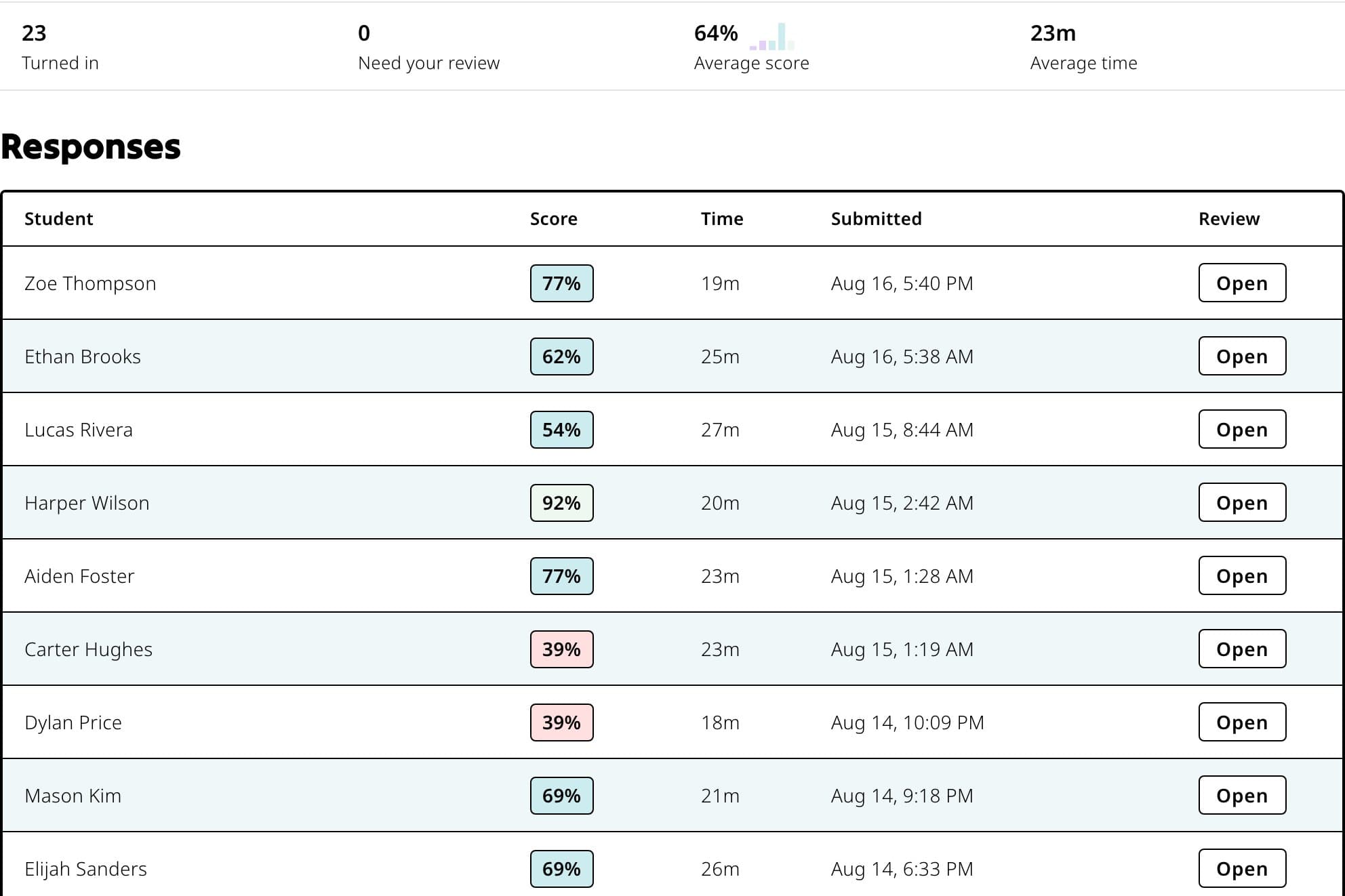
Start by opening the correct student row from Responses or Inbox. Read every section
Check MCQ choices, reading responses, diagnostic progress, and each FRQ or SAQ part included in the assignment.
Decide the score
For an FRQ, compare the response with the scoring evidence shown. Enter the final value in Score out of [points]. You can keep or change the first score.
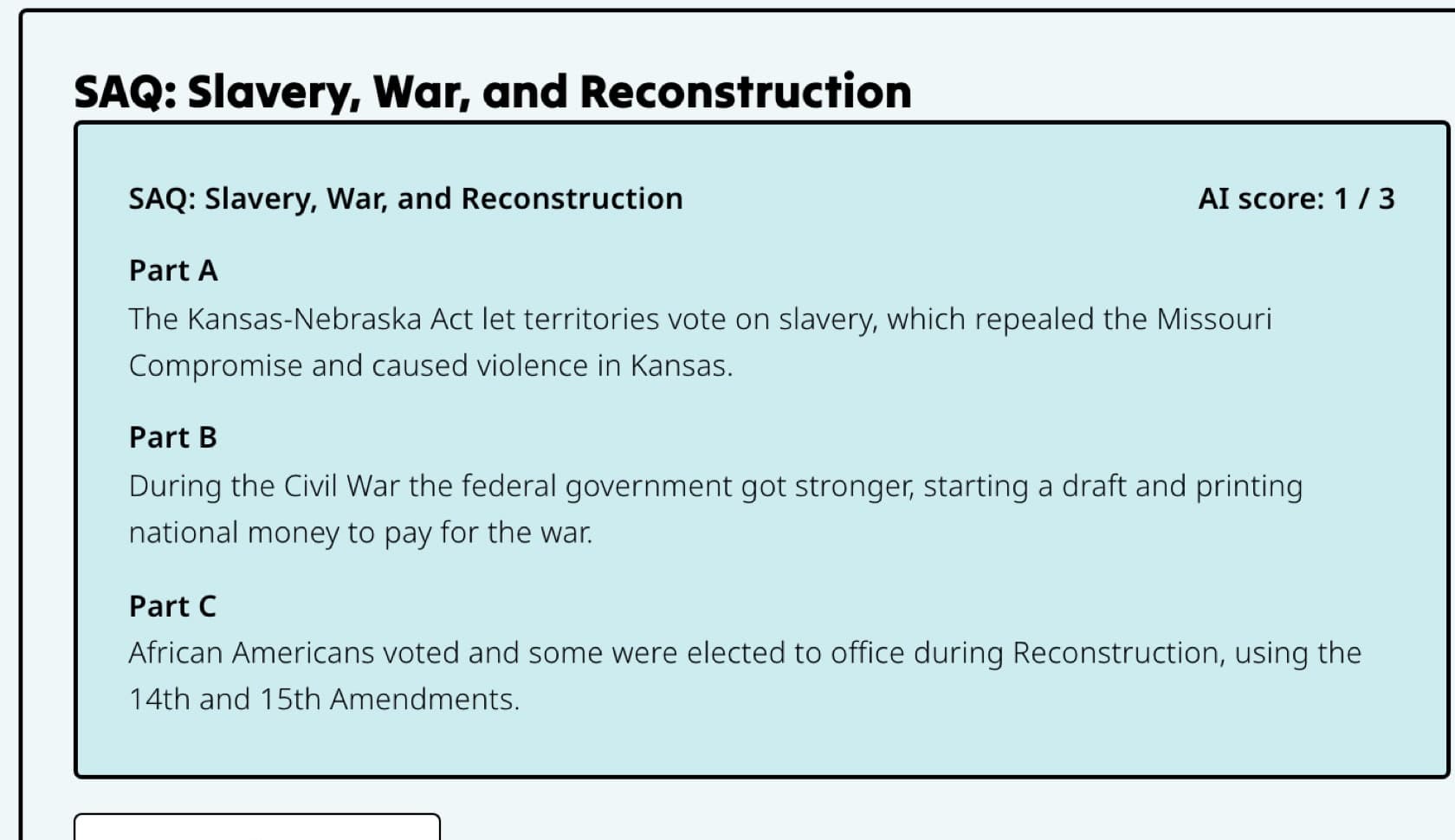
Read the response and scoring evidence before keeping or changing the first score. Add Overall feedback
Write the clearest next step for the student. Keep feedback specific to the response and avoid including private information about another student.
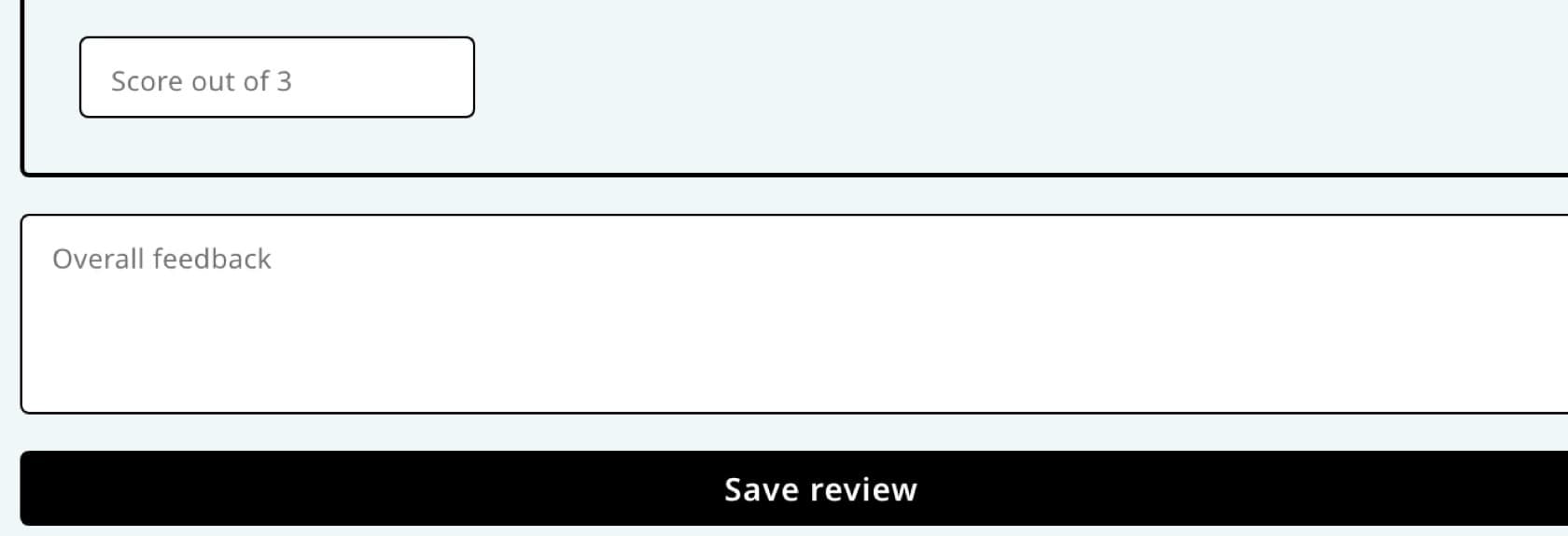
Use Overall feedback for a clear next step, then save the review. Select Save review
The review closes and the saved score appears in Responses.
What students see
Students see the final saved score and feedback only when your Release grades setting allows it or after you hand the assignment back.
If something is not working
Save review is not changing the score.
Confirm the value is within the available point range and that the save finishes without an error. Reopen the row to verify the stored score.
I saved the review, but the student cannot see it.
Check Release grades in Settings. If you chose I approve grades first, use Hand back to students after the set is ready.
Did this guide answer your question?