Find student responses inside an assignment
Open the response table, check submission totals, and choose a student to review.
Quick answer
Open Assignments, select the assignment, and open Responses. The top row shows Turned in, Need your review, Average score, and Average time. The table lists Student, Score, Time, Submitted, and Review, sorted alphabetically by student name. Use Sort to order it by last name, score, or submission time.
What to do
Open the assignment
Find the assignment in Assignments and select its row.
Open Responses
Select Responses or Responses (number) in the assignment tabs.

Select Responses from the assignment tabs to open the submitted-work view. Read the summary
Use Turned in to confirm the count, Need your review to find unfinished grading, and Average score and Average time for a quick class read.

The summary row gives you the submission count, remaining review work, average score, and average time. Sort or filter the table
The table starts in alphabetical order by first name. Use the Sort menu above the table to switch to last name, highest or lowest score, or newest or oldest submitted. Fiveable remembers your choice on this device. When the assignment went to more than one class, use the class menu beside it to show one period at a time.
Open a student
Select Review when the submission needs your decision. Select Open when the saved review is already complete and you want to inspect it again.
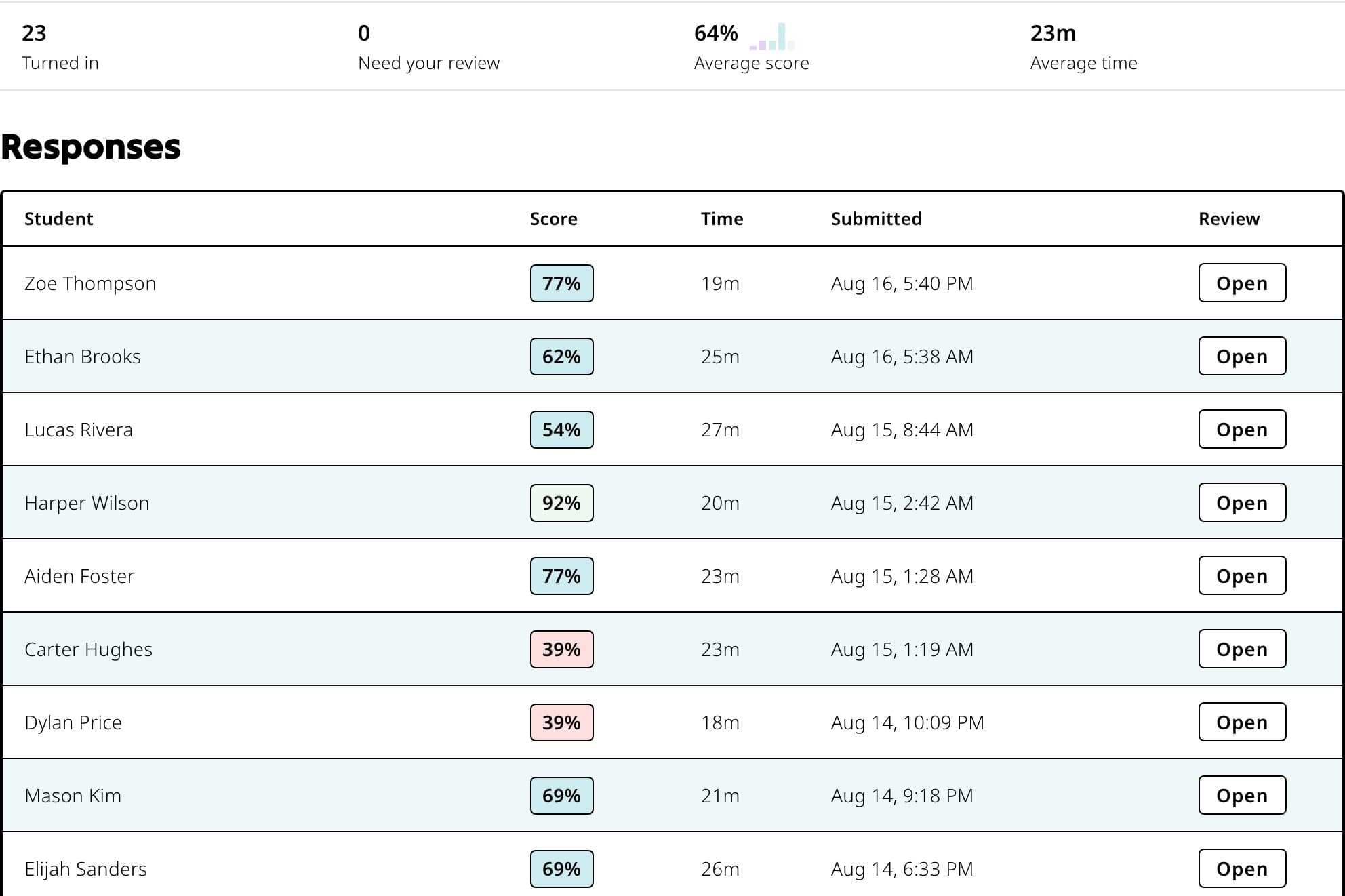
Use the action in the Review column to open the student response you want to inspect. Refresh when needed
Select Refresh to request the latest responses immediately.
If something is not working
The Responses tab says No responses yet.
Confirm the assignment is published and that students used this assignment's link. Copy the link again from the assignment if needed.
A student's row is missing.
Select Refresh, then confirm the student submitted under the expected account and assignment link.
Did this guide answer your question?