Preview an assignment as a student
Check the assignment from the student side without publishing it.
Quick answer
Open the assignment and select Preview near the status in the header. Move through the student view, then leave preview to return to editing. Preview does not publish the assignment or create a student submission.
What to do
Wait for the draft to save
Check that the header says Saved before opening Preview.
Select Preview
Use the Preview button in the assignment header.

Preview opens the saved assignment from the student perspective without creating a submission. Check the full student path
Read the title and instructions, open each section, check stimuli and answer fields, and confirm the timer and navigation fit the assignment.
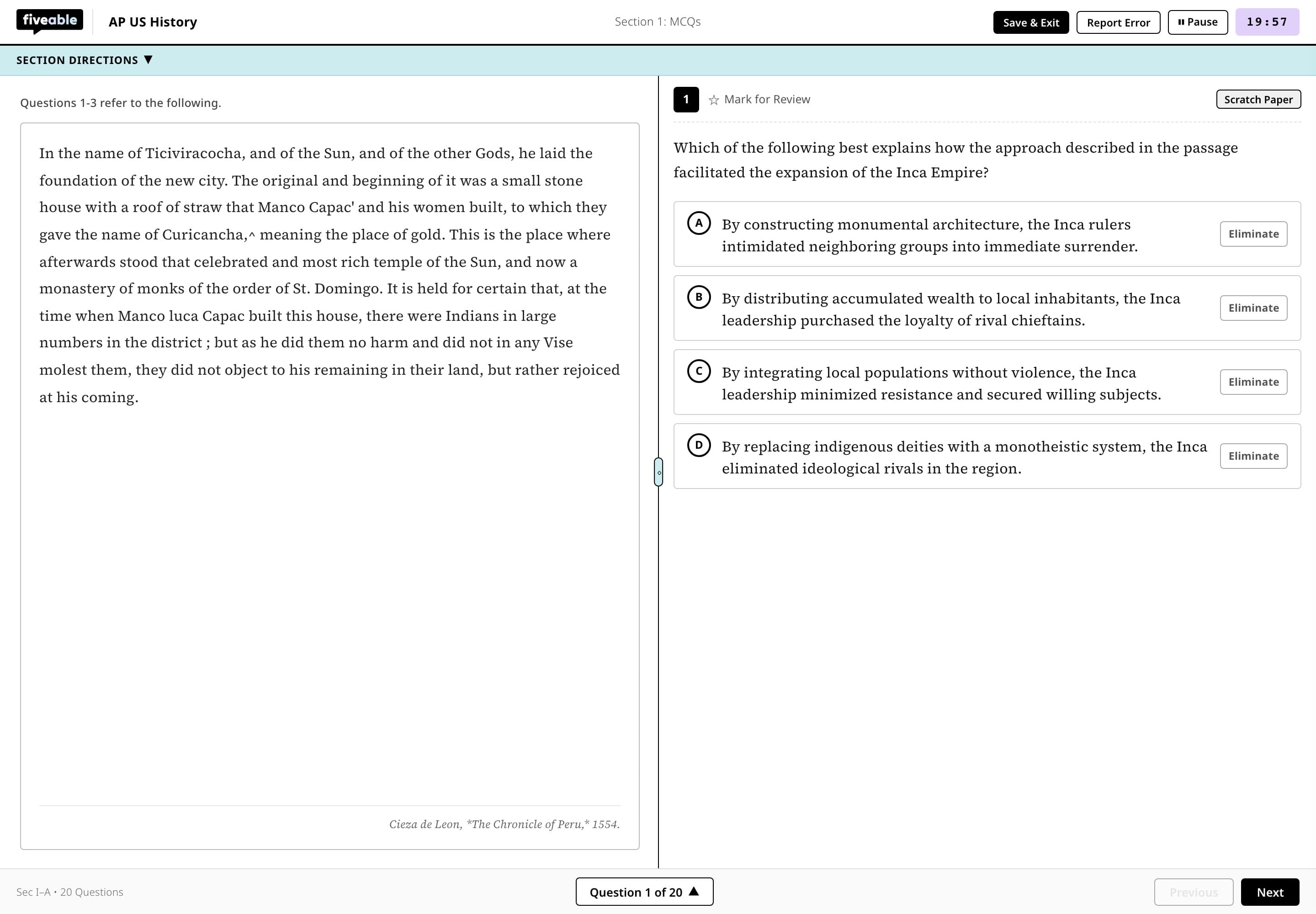
Move through the preview as a student would, checking the question, navigation, and timer together. Return to editing
Close or leave the preview, make changes in Edit or Settings, and preview again.
If something is not working
Preview is disabled.
Wait for the assignment to finish generating and saving. The draft also needs at least one valid section.
Preview does not match my latest change.
Return to the draft, wait for Saved, and reopen Preview.
Did this guide answer your question?