Create and publish an assignment
Choose a template, adjust the draft, review settings, and publish the student link.
Quick answer
Open Assignments and select Create assignment. Choose a template, finish the choices in the Edit tab, review Settings, then select Publish. Publishing creates the student link; it does not automatically post the link to Google Classroom or another LMS.
What to do
Choose a template
Select MCQ set, FRQ / SAQ, Guide + questions, AMSCO guided notes, Diagnostic, Unit exam, or AP exam. Grade finished work opens the separate import flow instead.
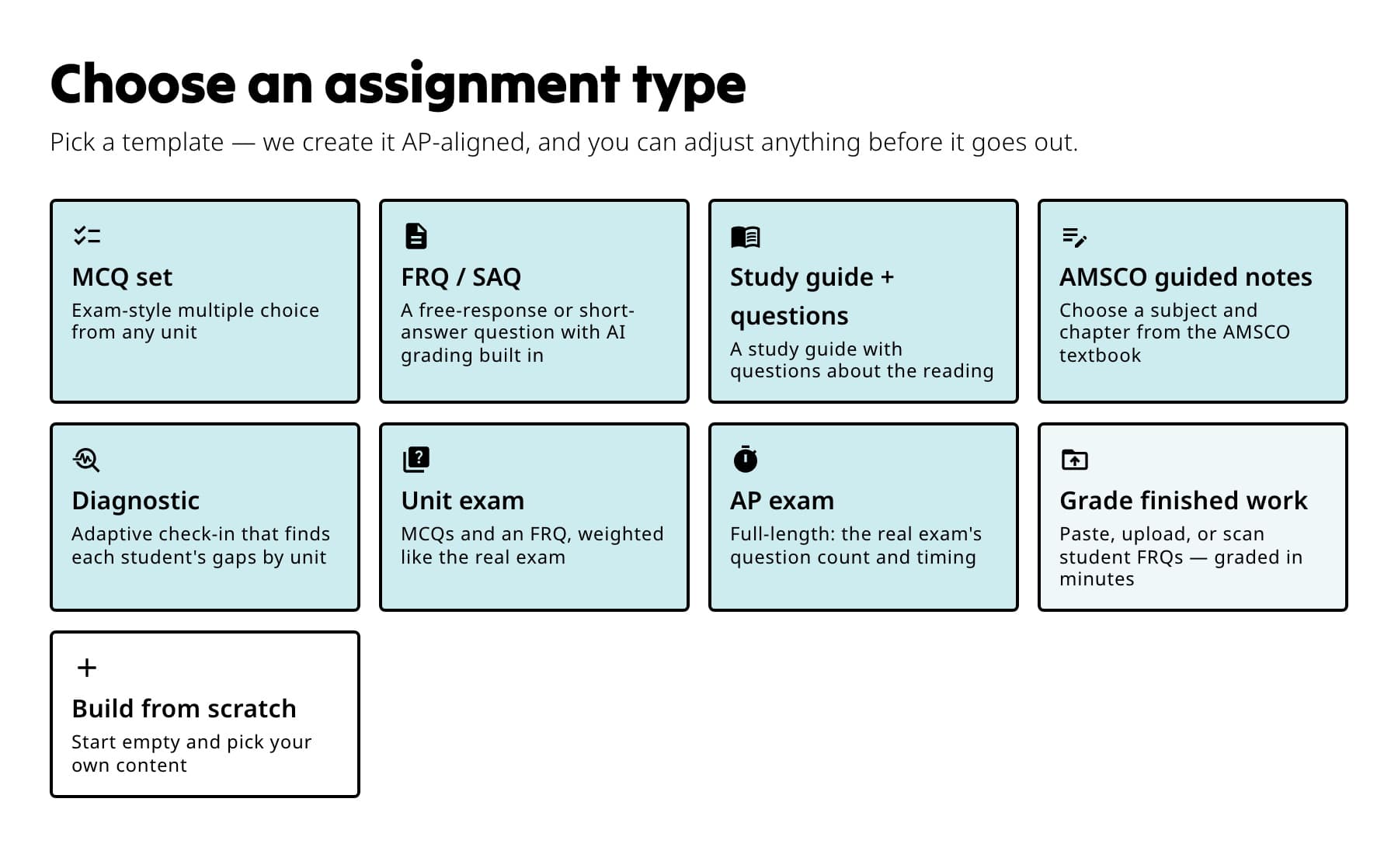
Choose the template that matches the student task before setting the subject and coverage. Build and name the draft
Choose the subject and the template-specific options. In Edit, check every section, adjust what students will receive, and replace Untitled assignment with a clear title.
Review Settings
Select Review settings or open the Settings tab. Confirm the class, due date, timing, attempts, grading, late-work, reteach, and result-release choices that apply to this assignment.
Preview before publishing
Select Preview to open the student view. Return to the draft to make any changes. Preview does not publish or create a student link.
Publish
Select Publish. In How will you share this with students?, choose Google Classroom, another LMS, or the student link. Confirm the title and instructions, then use the publish action shown for your choice.
Finish the handoff
Copy the link into your LMS, or continue to Google Classroom and choose the class there. The assignment is live on Fiveable as soon as publishing succeeds.

After publishing, copy the student link or continue the handoff to Google Classroom from the assignment header.
What students see
Students see the published title and instructions, then sign in and select Start assignment. Draft changes are not visible until they are saved, and an unpublished draft has no student link.
If something is not working
Publish is disabled.
Check that the assignment has a title and at least one valid section. Wait for any section that is still generating, then try again.
I published, but nothing appeared in Google Classroom.
Publishing makes the Fiveable assignment live. Select Continue to Google Classroom and complete the post in Google Classroom itself.
Did this guide answer your question?