Choose class, timing, grading, and result settings
Decide who receives the assignment, when it is due, and how grading and retakes work.
Quick answer
Open the assignment and select Settings. Review the class and due-date choices, then Auto grade, Reteach, Late work, Timer, Retakes, Release grades, and New attempts. The settings shown depend on the assignment sections you chose.
What to do
Choose the audience
Select one or more classes when you want class-specific links and roster reporting. You can also publish without a class and share one general student link.
Set dates and class time
Choose the available date and due-date fields. A class's saved Class time is used as its default due time, and you can review that time from Classes.
Choose grading and release
Use Auto grade when supported sections should receive a first score from Fiveable. Use Release grades to decide whether students see results right away or after your approval.
Choose the student experience
Reteach can give a targeted review after a low score. Late work controls whether students may submit after the due date. Timer sets exam pacing, a custom number of minutes, or Untimed.
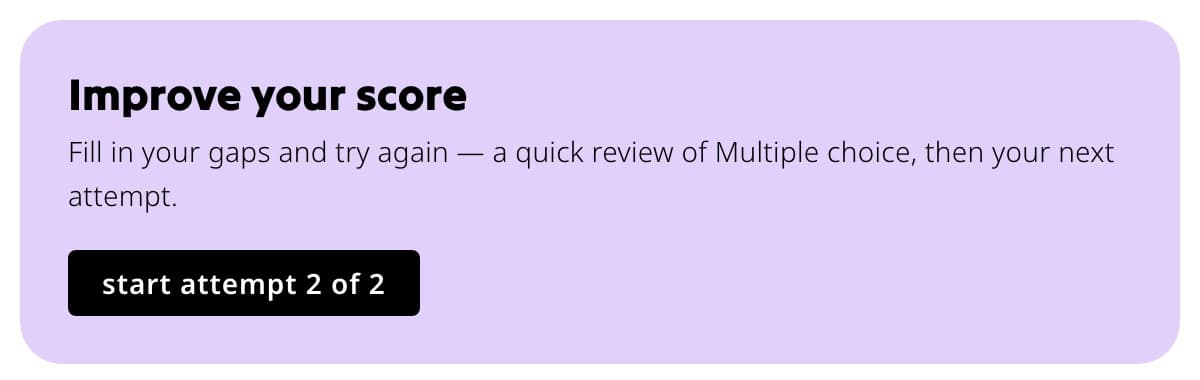
When Reteach and another attempt are available, students can review gaps before trying again. Choose attempts
Retakes controls how many additional attempts students receive. New attempts controls whether another attempt uses the same questions with shuffled answers or different aligned questions when available. With the same questions, students choose to edit the answers from an earlier attempt or start fresh.
Save and preview
Wait for Saved, then select Preview. Confirm the instructions, timer, and start experience before publishing.
What students see
Students see the class, instructions, due information, and Start assignment. A timer begins only after they start. Result visibility and retakes follow the choices you saved.
If something is not working
A setting is missing.
Some settings only apply to certain section types. Confirm the assignment contains a supported section and that you are on the Settings tab.
Students saw grades before I reviewed them.
Open Settings and check Release grades. Choose I approve grades first for future submissions when you want a manual hand-back step.
Did this guide answer your question?