Quick answer
Select Create assignment to open Choose an assignment type. Start with the student task: questions only, free response, reading, guided notes, a diagnostic, or an exam. You can adjust the generated draft before you publish it.
What to do
Open Choose an assignment type
Open Assignments, select Create assignment, and choose the card that matches the work students should complete.
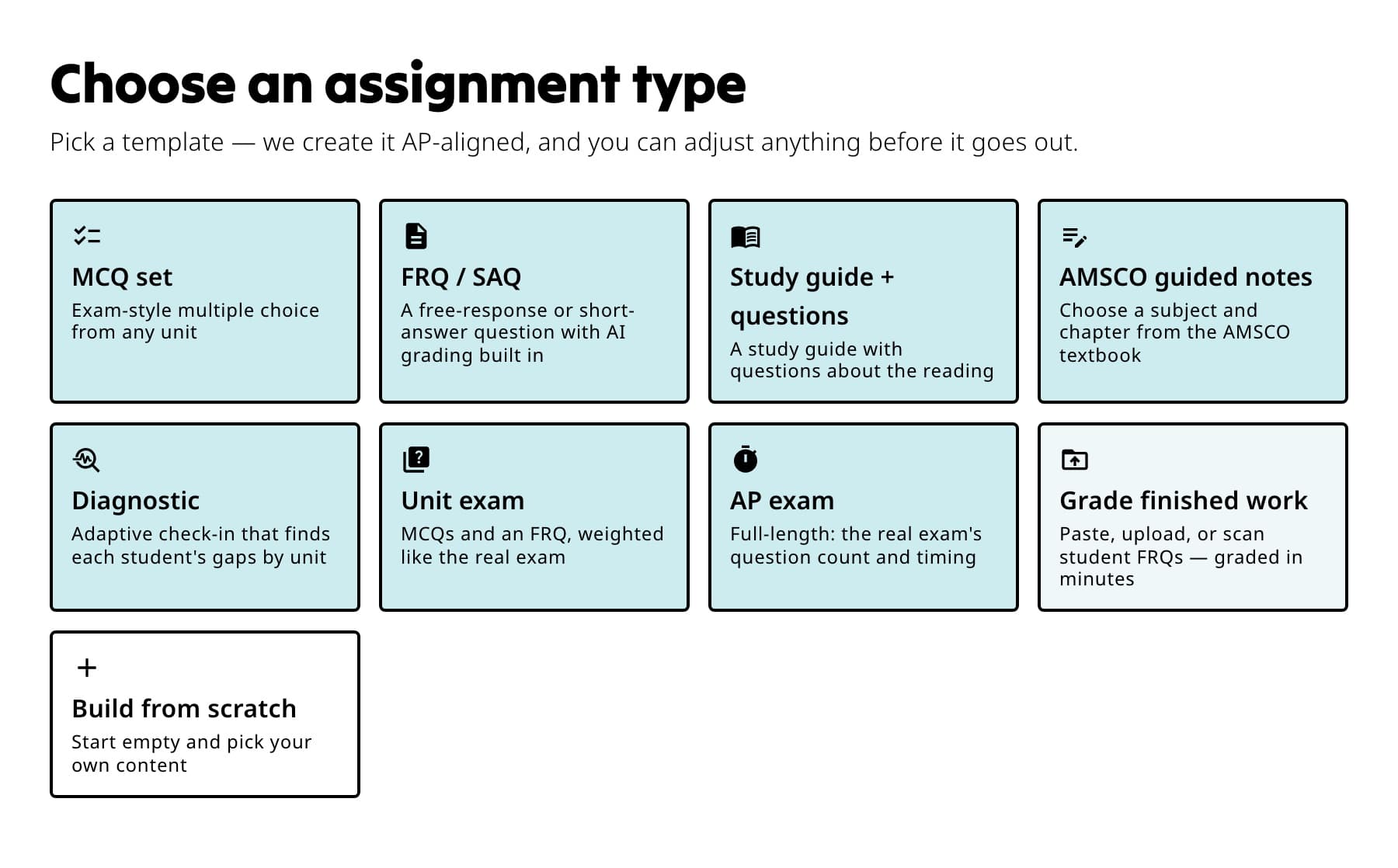
Start with the student task. You can adjust the generated assignment before publishing. Use MCQ set
Choose exam-style multiple-choice questions from one or more units.
Use FRQ / SAQ
Choose a free-response or short-answer prompt with AI grading built in. You remain responsible for the final score before results are released.
Use Guide + questions or AMSCO guided notes
Choose Guide + questions for a Fiveable reading followed by checks for understanding. Choose AMSCO guided notes when your subject and chapter are supported.

The first row contains question, free-response, reading, and guided-notes templates. Use Diagnostic, Unit exam, or AP exam
Diagnostic adapts by unit to find gaps. Unit exam combines MCQs and an FRQ with exam-style weighting. AP exam builds a full-length assignment with the real exam's question count and timing where available.

Use the assessment row for an adaptive check-in, unit assessment, full AP exam, or already-completed work. Use Grade finished work for existing responses
This option leaves the assignment builder and opens Grade work. Use it when students already answered elsewhere and you need to import, review, and export grades.
If something is not working
I do not see the exact type I need.
Select Request new type on the template page. You can also start from the closest supported template and adjust its sections before publishing.
A template is missing for my subject.
Template availability follows the content available for that subject. Try another template or use Import and grade for responses students already completed.
Did this guide answer your question?