Add an FRQ, reading, or guided notes
Build an assignment from an AP® prompt, Fiveable guide, or supported AMSCO chapter.
Quick answer
Choose FRQ / SAQ for free response, Guide + questions for a Fiveable reading, or AMSCO guided notes for a supported textbook chapter. Complete the picker for that template, then review the section in Edit before publishing.
What to do
Choose the student task
Use FRQ / SAQ when students will write a scored response. Use Guide + questions when they should read and answer checks for understanding. Use AMSCO guided notes when you want chapter-aligned notes.
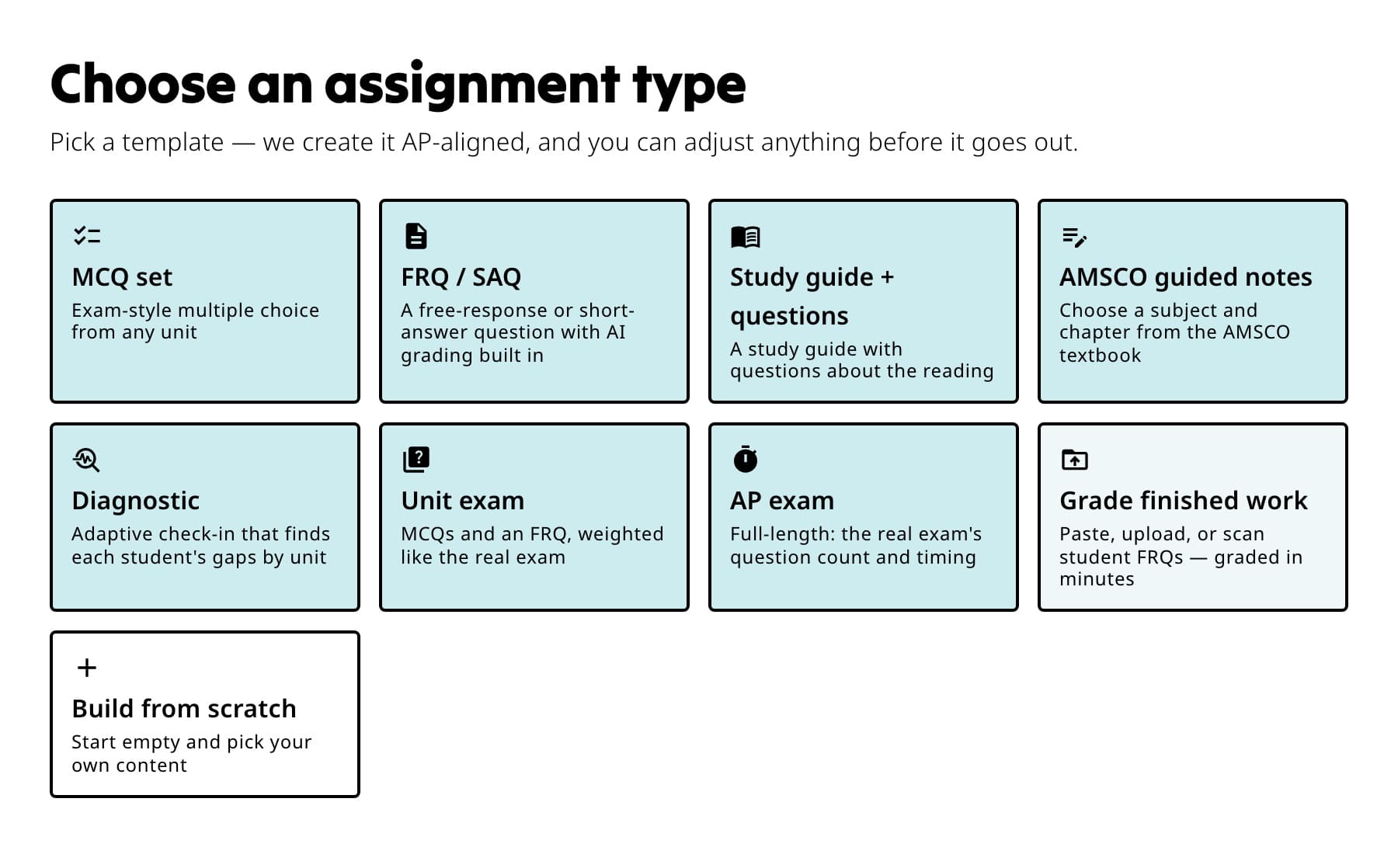
Choose the card that matches the task students will complete, then adjust the generated draft. Choose the subject and source
Select the subject first. Then choose the prompt, guide, or AMSCO chapter shown for that subject. FRQ types and chapter choices vary by course.
Review the generated section
Read the prompt or resource, directions, and attached questions. For an FRQ, verify that the prompt matches the format and content your class has covered.
Choose grading and release settings
Open Settings. Decide whether Fiveable should auto grade supported work, whether you will approve grades first, and when students can see results.
Preview and publish
Select Preview, return to make any edits, then select Publish.
What students see
FRQ and SAQ sections provide separate response fields for the prompt parts. Reading and guided-notes sections show the source material with the questions or fields included in the draft.
If something is not working
I cannot find an FRQ type or AMSCO chapter.
Availability differs by subject. Confirm the selected subject and use the choices shown in the picker. If the content is not offered, choose another template or report the missing type.
The assignment is still generating.
Keep the page open until the section finishes. If it does not finish, refresh once and reopen the draft from Assignments.
Did this guide answer your question?
Keep going
Understand what Fiveable grades automatically
Review a response, adjust the score, and leave feedback