Build an MCQ assignment
Choose a subject, units, question count, and question mix, then review the generated MCQs.
Quick answer
Select Create assignment, then MCQ set. Choose the subject and the units or topics you want to assess. Set the question count and available question-mix choices, build the section, and inspect every question in Edit before publishing.
What to do
Open MCQ set
From Choose an assignment type, select MCQ set.
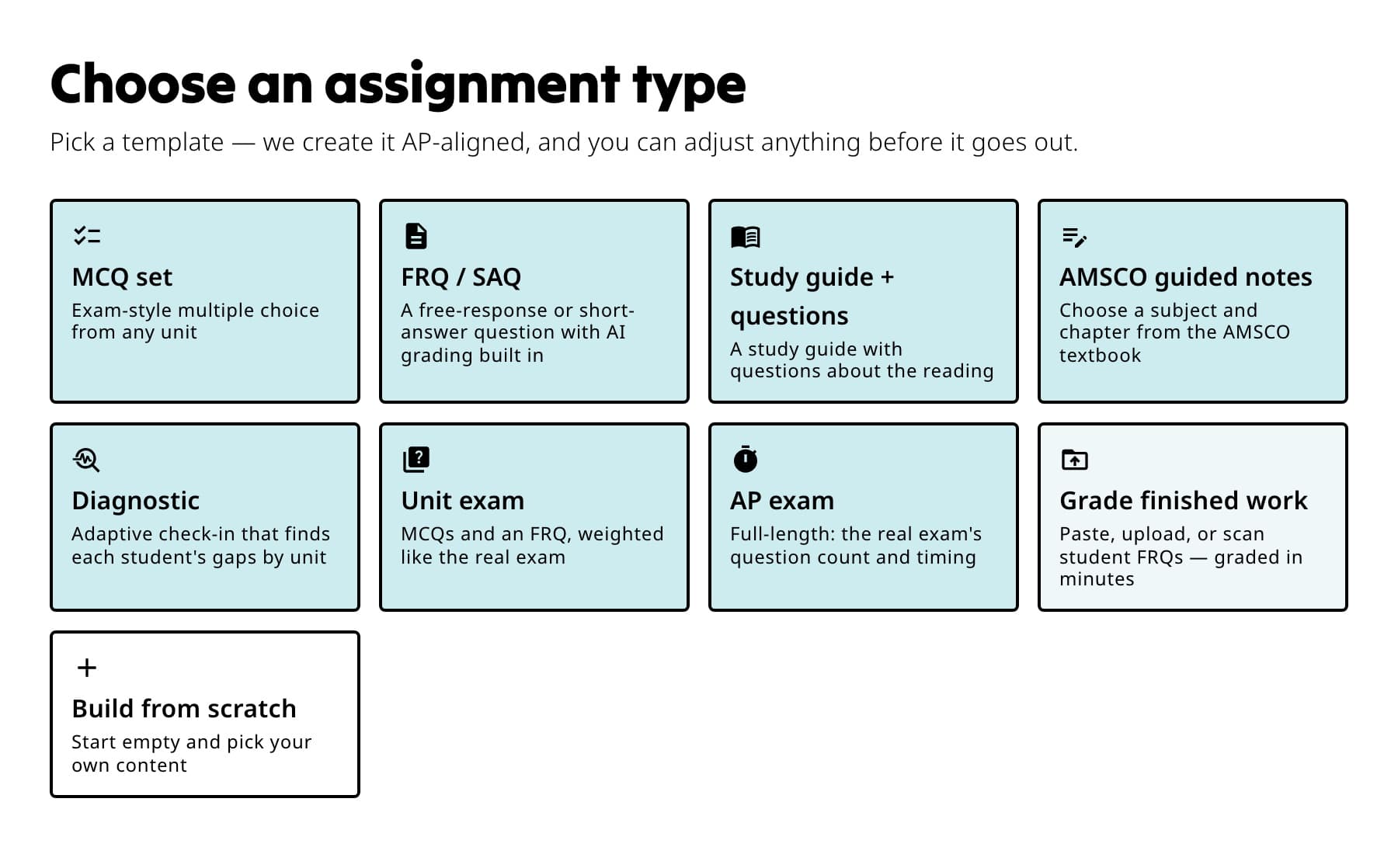
Choose MCQ set when students should answer exam-style multiple-choice questions. Choose the course content
Select the Subject, then choose the units or topics shown for that course. The picker only offers content currently available for that subject.
Set the size and mix
Choose how many questions you want. When style or difficulty controls appear, use the helper text to decide between an exam-style mix and other available choices.
Build and review
Create the section, then read each question and answer set in Edit. Replace or remove anything that does not fit what you taught.
Finish Settings and publish
Select Review settings, confirm timing and grading choices, preview the student view, and select Publish.
What students see
Students see one MCQ at a time, including any stimulus connected to the question. They can mark questions for review and move through the assignment before submitting.
If something is not working
The builder cannot make the question count I chose.
The selected units may not have enough eligible questions for that exact mix. Reduce the count or include another unit, then build again.
I changed the subject after choosing questions.
Confirm the subject change when asked. Rebuild the section so every question belongs to the new course.
Did this guide answer your question?
Keep going
Replace, reorder, or remove assignment sections
Choose class, timing, grading, and result settings