Create a diagnostic, unit exam, or AP exam
Use an exam preset when you want more than a single question section.
Quick answer
Select Diagnostic, Unit exam, or AP exam from Choose an assignment type. Choose the course coverage, review the assembled sections and timing, then adjust the draft before you publish it.
What to do
Choose the right preset
Diagnostic adapts by unit to identify gaps. Unit exam combines course content with exam-style weighting. AP exam uses the full exam's question count and pacing where Fiveable supports the course.
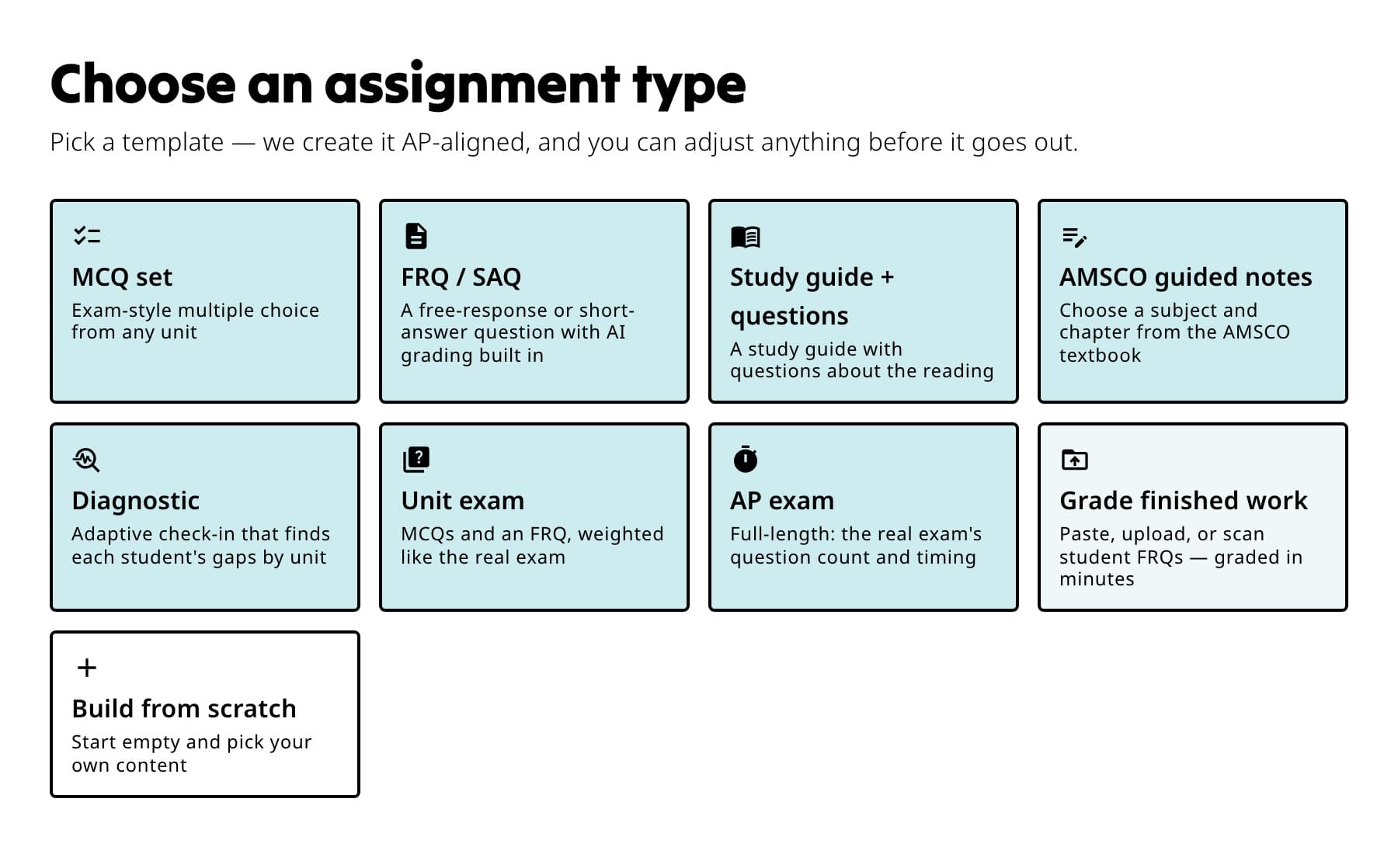
Use Diagnostic for gap-finding, Unit exam for one unit, or AP exam for a full supported exam. Choose the subject and coverage
Select the subject, then the unit or course-wide options shown.
Review the preview
Check the section list, question counts, and timing before assembly. For world-language written companions, remember that a printable or digital written section cannot reproduce every listening or speaking condition.
Inspect the assembled assignment
In Edit, open each section and confirm it matches what your class has covered. Remove or replace sections before students receive the link.
Confirm timing and publish
Open Settings, review the timer and attempts, preview, and publish.
If something is not working
AP exam is not available for this subject.
Full exam presets depend on Fiveable's current exam configuration. Use Unit exam, combine supported sections, or choose another assignment type.
The exam timing is not what I need.
Open Settings and change Timer before publishing. Confirm the student-facing time in Preview.
Did this guide answer your question?