Change the defaults for new assignments
Set the choices Fiveable should use when you build your next assignment.
Quick answer
Open Settings in the Teacher Workspace left menu. The page title is My defaults. Change the assignment options and sharing choices, then save; new assignments begin with those settings, and you can still change any individual assignment.
What to do
Open Settings
In the Teacher Workspace left menu, select Settings to open My defaults.
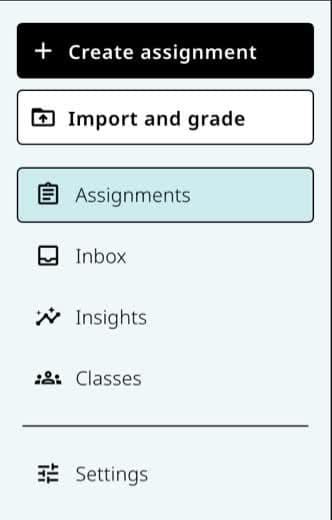
Use Settings in the Teacher Workspace menu to open My defaults for future assignments. Choose assignment options
Review Auto grade, Reteach, Late work, Timer, Retakes, Release grades, Minutes, and New attempts.
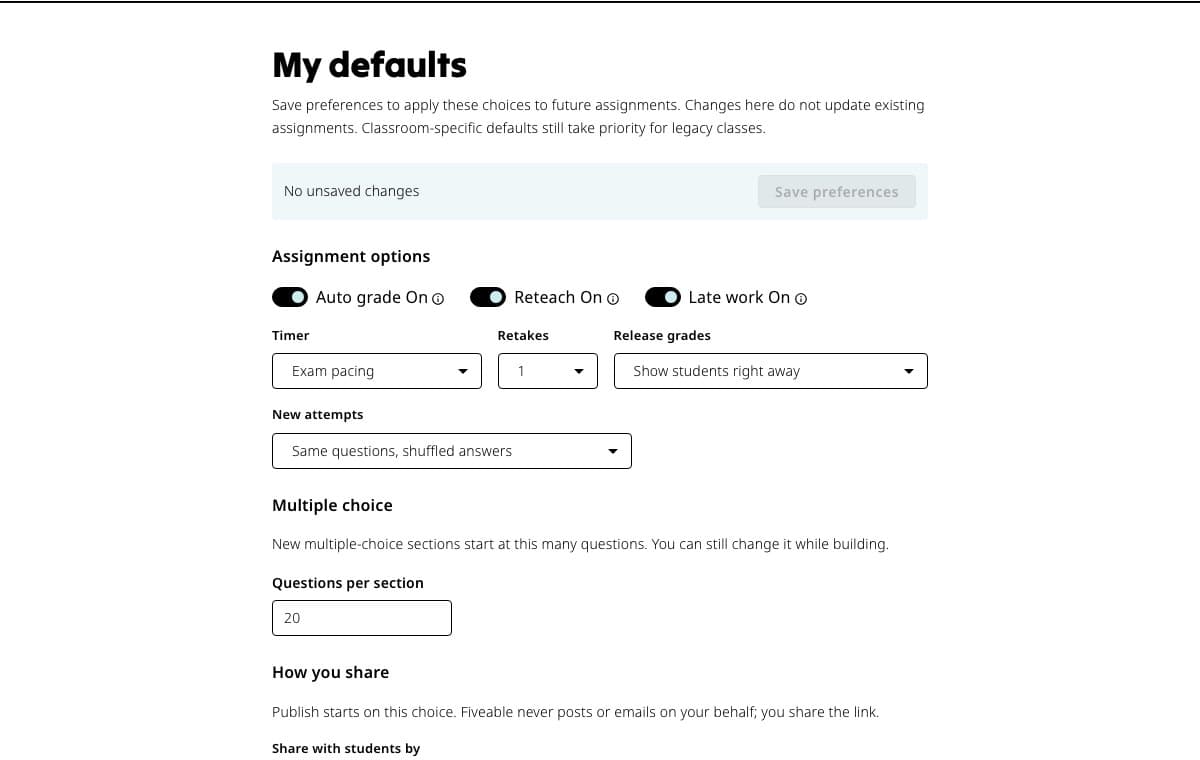
These choices become the starting point for future assignments; they do not change work you already created. Choose MCQ and sharing defaults
Set Questions per section, Share with students by, and Which LMS? when those controls apply to you.
Save
Use the save action and wait for Saved before leaving.
Check the next draft
Create a new assignment and open Settings to confirm the defaults carried over. Existing assignments do not change.
If something is not working
An older assignment did not change.
My defaults only supplies starting choices for new assignments. Open the older assignment's Settings tab to change it directly.
The page still shows Unsaved changes.
Use the save action and wait for Saved. If it does not finish, refresh and confirm which choices were retained before trying again.
Did this guide answer your question?