Understand what Fiveable grades automatically
Know which work receives an automatic score and where your review is still required.
Quick answer
MCQs score from the selected answer. Supported FRQs and short responses can receive an AI first score and feedback. You can change an FRQ score and add Overall feedback before results are handed back; your professional judgment controls the final grade.
What to do
Check the assignment settings
Open Settings and review Auto grade and Release grades. The available choices depend on the assignment sections.
Open Responses
A numeric score is available for completed auto-graded work. Needs review marks a response that still requires your attention.

Need your review shows how many responses still require a teacher decision. Review free response
Open the student row. Read the prompt, response, AI score, and available rubric detail before entering or adjusting the score.
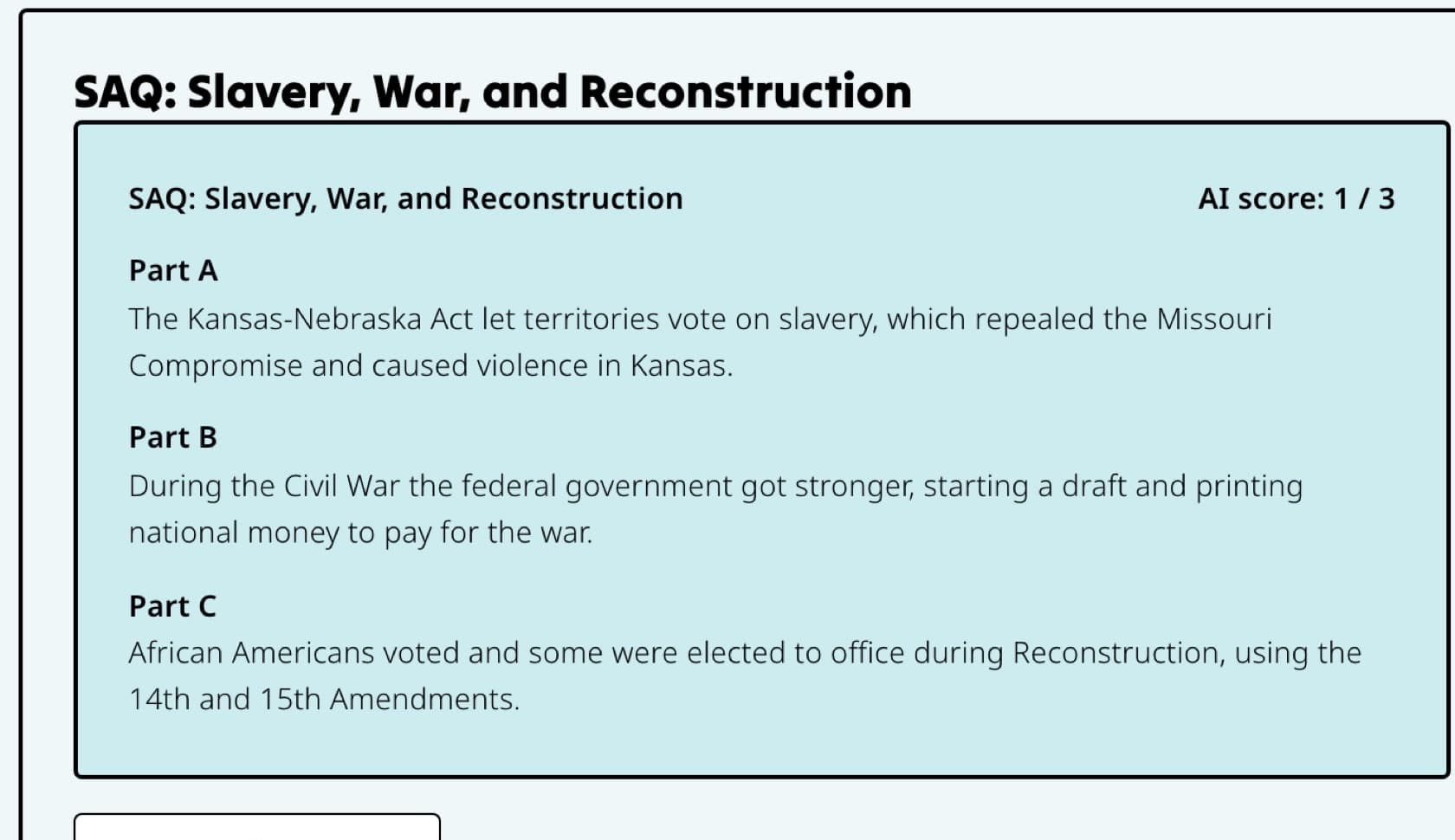
Compare the response with the first score before entering the teacher's final score. Save your decision
Enter the final Score out of the available points, add Overall feedback when useful, and select Save review.
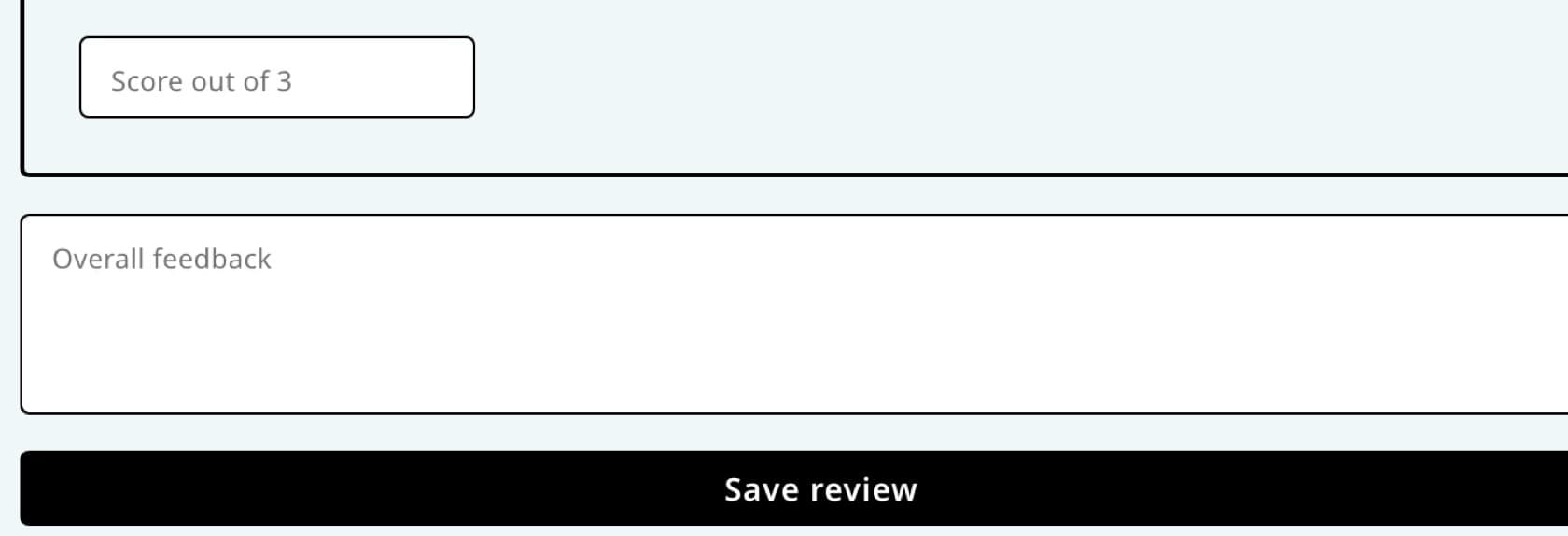
Add the clearest useful feedback, then select Save review to keep the final decision.
Good to know
- A first score can reduce repetitive work, but it does not replace teacher review. Check the reasoning, context, and course expectations before releasing results.
If something is not working
A response says Needs review.
Open it and save the required score or feedback. The queue clears after the review is complete.
The automatic score does not match my judgment.
Change the score in Review, explain the decision in Overall feedback if helpful, and select Save review. The teacher score is the final score used for the result.
Did this guide answer your question?