Save a printable as a PDF
Use the browser print dialog to create a PDF from the current preview.
Quick answer
Finish the resource choices in Print center and select Print. In the browser's print dialog, choose Save as PDF as the destination, review the page range and scale, and save the file to your device.
What to do
Finish the preview
Open Print center, finish the resource choices, and wait for questions, images, answer keys, and scoring guidelines to load.
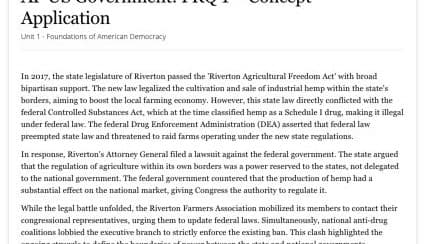
Wait for the complete preview to load before opening the browser print dialog. Select Print
This opens your browser or system print dialog.
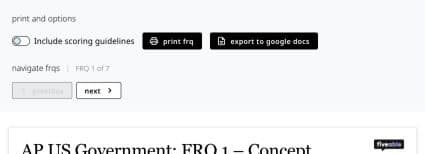
Use the Print action above the finished preview to open the browser print dialog. Choose Save as PDF
Set Save as PDF as the printer or destination.
Check page settings
Review paper size, orientation, scale, margins, and page range. Use a page range when you want to separate student pages from an answer key.
Save the file
Choose a clear file name and location, then open the saved PDF to verify every page.
If something is not working
Save as PDF is missing.
Look under Destination, Printer, or the PDF menu in the system dialog. The exact location depends on the browser and computer.
The saved PDF is blank or incomplete.
Close the dialog, wait for the full web preview to load, and try again in Chrome or Safari.
Did this guide answer your question?
Keep going
Fix a printable that is cut off or incomplete
Export a printable to Google Docs, Forms, or Slides