Export a printable to Google Docs, Forms, or Slides
Use a Google export when that format is available for the selected resource.
Quick answer
Choose the subject and resource in Print center, then use the Google Docs, Google Forms, or Google Slides action that appears beside the preview. Sign in to the Google account where you want the copy and wait for the new file to open.
What to do
Choose the resource
Open Print center and complete Subject, What to print, and the topic, unit, chapter, or question choices.
Look for a Google action
Formats vary. MCQ resources may offer Google Forms or Google Docs; other resources may offer Docs or Slides. If a button is not shown, that export is not supported for the current resource.
Select the export
Choose the Google tool you want. Sign in and approve the connection if Fiveable asks.
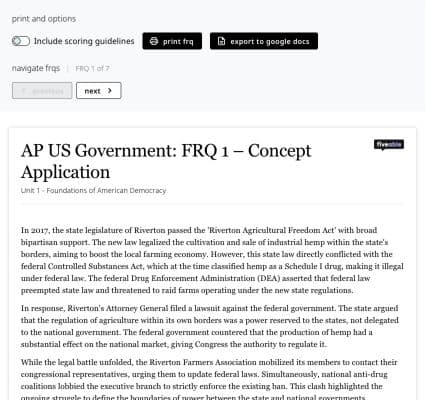
Supported resources show their available Google export action above the preview. Wait for the copy
Keep the page open until the file is created. The new Google file opens in the account you authorized.
Review before sharing
Check formatting, answer keys, and permissions in Google before sending the file to students.

Check the source preview before sharing the new Google file, then confirm its permissions in Google.
If something is not working
The Google file says Request access.
Open Google with the same account you authorized when you exported the file. If that account is no longer connected, reconnect it from Account > Integrations and export a new copy. A different Google account must request access from the account that owns the exported file.
The wrong Google account opened.
Switch accounts in Google, or disconnect and reconnect the integration from Account before exporting again.
No Google export button appears.
That format is not available for the current resource. Use Print to save a PDF or choose another supported resource type.
Did this guide answer your question?