Print an FRQ with scoring guidelines
Choose a subject, FRQ type, unit, and whether the scoring guidelines should appear.
Quick answer
Open Print center, choose the subject, then choose the named FRQ type under What to print. Select a unit when offered, choose Include scoring guidelines if you want them, wait for the preview, and select Print.
Before you start
- Know the AP® subject, FRQ type, and unit you want students to practice.
- Decide whether the teacher copy should include scoring guidelines.
What to do
Open Print center and choose the subject
Select the Open Print center button at the top of this guide. Under Download/export resources, open Subject and select the AP® course you teach.
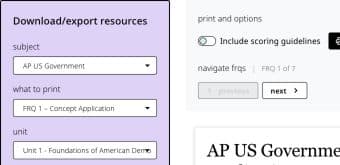
Choose Subject first, then let Print center load the FRQ types and units available for that course. Open What to print and choose the FRQ type
Select What to print. Choose the exact named option, such as FRQ 1 – Concept Application. The list contains only the FRQ types available for the selected subject.
Choose the unit shown below it
Open Unit and select the unit you want students to practice. If only one supported unit is available, Fiveable keeps that unit selected for you.
Review the FRQ in the preview
Confirm the preview title matches the subject, FRQ type, and unit you selected. Use Previous and Next under Navigate FRQs when more than one prompt is available.

Check the preview title and prompt before deciding what to include in the printed copy. Choose whether to include scoring guidelines
In Print and options, turn Include scoring guidelines on for a teacher or review copy. Leave it off for a student-ready prompt. If a guideline is still generating, wait for the preview to finish before printing.
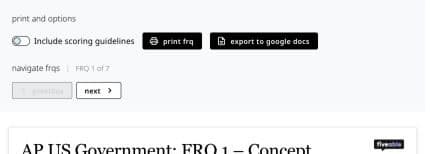
Turn scoring guidelines on only when the copy should include them, then use the print or export action. Select Print FRQ
Select Print FRQ above the preview. In the browser print dialog, confirm the printer or Save as PDF destination, page range, and number of copies before finishing.
If something is not working
No FRQ type appears.
That subject may not have printable FRQs available. Try another subject or use the assignment builder's FRQ / SAQ template.
Scoring guidelines are still generating.
Keep the page open until the loading message finishes. Do not print until the preview contains the pages you expect.
Did this guide answer your question?