Quick answer
From the Teacher Workspace, select Print center near the bottom of the desktop left menu. You can also open /printables from the main Fiveable teacher menu. Choose a subject first, then use What to print to choose an available resource.
What to do
Open Print center
Select Print center in the Teacher Workspace or open Print center directly.
Choose a subject
Under Download/export resources, select a course from Subject. Your saved subjects appear first when available.
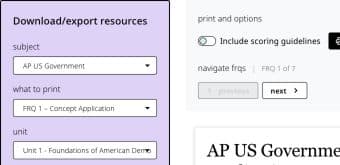
Choose Subject first so Print center can load the resources available for that course. Choose What to print
The list changes by subject. It may include Full Practice Exam, Topic Study Guide, Official Fiveable Cheatsheet, MCQs, SAQs, FRQ types, AMSCO Guided Notes, or AP Government resources.
Finish the resource choices
Choose the unit, topic, chapter, question count, country, or other option that appears for the selected resource.
Use the action shown
Print, download, or export with the controls beside the preview.
If something is not working
Print center is not visible in the Teacher Workspace menu.
On a small screen, open /printables directly or use the main site menu. The desktop rail keeps Print center at the bottom.
I see a Share Plan message instead of the controls.
Your current account does not have print access. Review the plan options or confirm that you are signed in to the account with your teacher subscription.
Did this guide answer your question?