Paste a roster before assigning work
Add a list of student names to a saved class in one step.
Quick answer
Open Classes, select the class, and find Paste your roster. Paste one student name per line, review the parsed list, and select Add students. Student accounts are connected later when students sign in through an assignment link.
Before you start
- Prepare a plain list with one student name per line. Do not paste grades or student work.
What to do
Open the class
Open Classes and select the class you want to update.
Paste names
Paste the list into Paste your roster. Use one line per student; an email is optional.
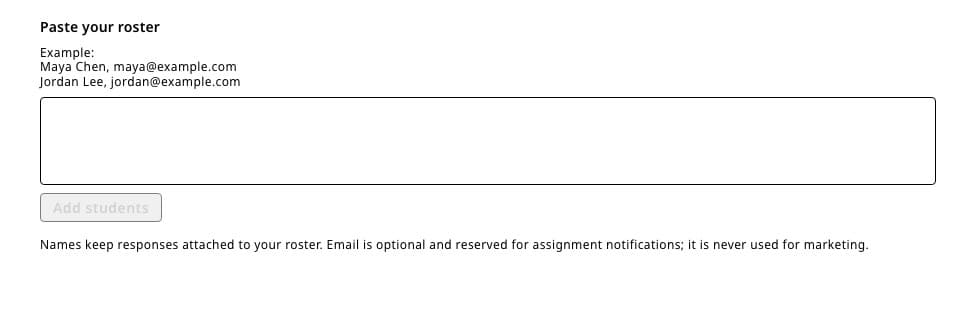
Paste one student per line. Keep names in the first column and add an email only when you need it. Review the list
Check spelling and remove headers, blank notes, email addresses you do not need, or anything that is not a student name.
Select Add students
Fiveable adds the rows to the class roster.
Let students connect their accounts
Share a class-specific assignment link. When each student signs in and joins the class, Fiveable connects their account to the roster entry.
If something is not working
Several names appeared in one row.
Undo or remove the incorrect row, then paste the list again with one student on each line.
A student appears twice.
Open the roster, select the extra row, and remove it after confirming which entry is connected to submitted work.
Did this guide answer your question?