Create and manage a class
Save a class name, AP® subject, class time, and roster for assignment reporting.
Quick answer
Open Classes in the Teacher Workspace and select Add a class. Enter the Class name, Subject, and Class time, then select Add class. Open the class later to edit its details or manage students.
What to do
Open Classes
Select Classes in the Teacher Workspace left menu.

Classes keeps class creation and automatic rostering together at the top of the page. Select Add a class
This opens the class details dialog.
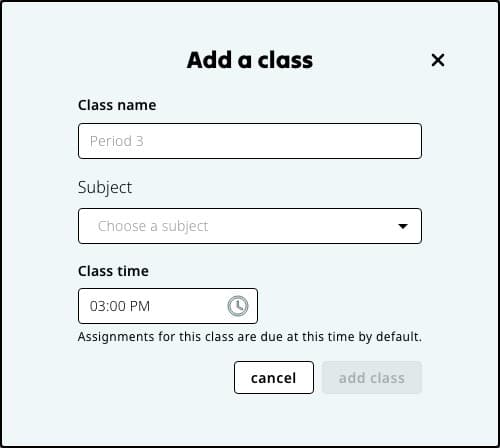
Add the class name, AP subject, and the time assignments for this class are usually due. Enter the details
Add the Class name, choose the Subject, and set the Class time. For AP Calculus, choose AB or BC under Course.
Save the class
Select Add class. The class appears in the Classes list.
Open it when you need to make changes
Select the class to edit its details, paste a roster, update a student, or remove students.
Good to know
- Class time becomes the default due time for assignments assigned to that class.
If something is not working
I cannot save the class.
Check that Class name, Subject, and Class time are complete. AP Calculus also requires a Course choice.
I created the same class twice.
Open the duplicate class and remove it only after confirming that no active assignment depends on it. Contact support if you are unsure which record to keep.
Did this guide answer your question?