Paste, upload, scan, or import student responses
Choose the cleanest source for a class set before grading begins.
Quick answer
In Grade work, begin with Responses. Paste text for a small set, upload supported files, scan handwritten work, or connect Google Drive or Google Classroom. Review the detected student rows before moving to Subject & question type.
What to do
Choose the source
Use pasted text when you can clearly separate students. Use upload or scan for documents and handwriting. Use Google Drive or Google Classroom when the work already lives there.
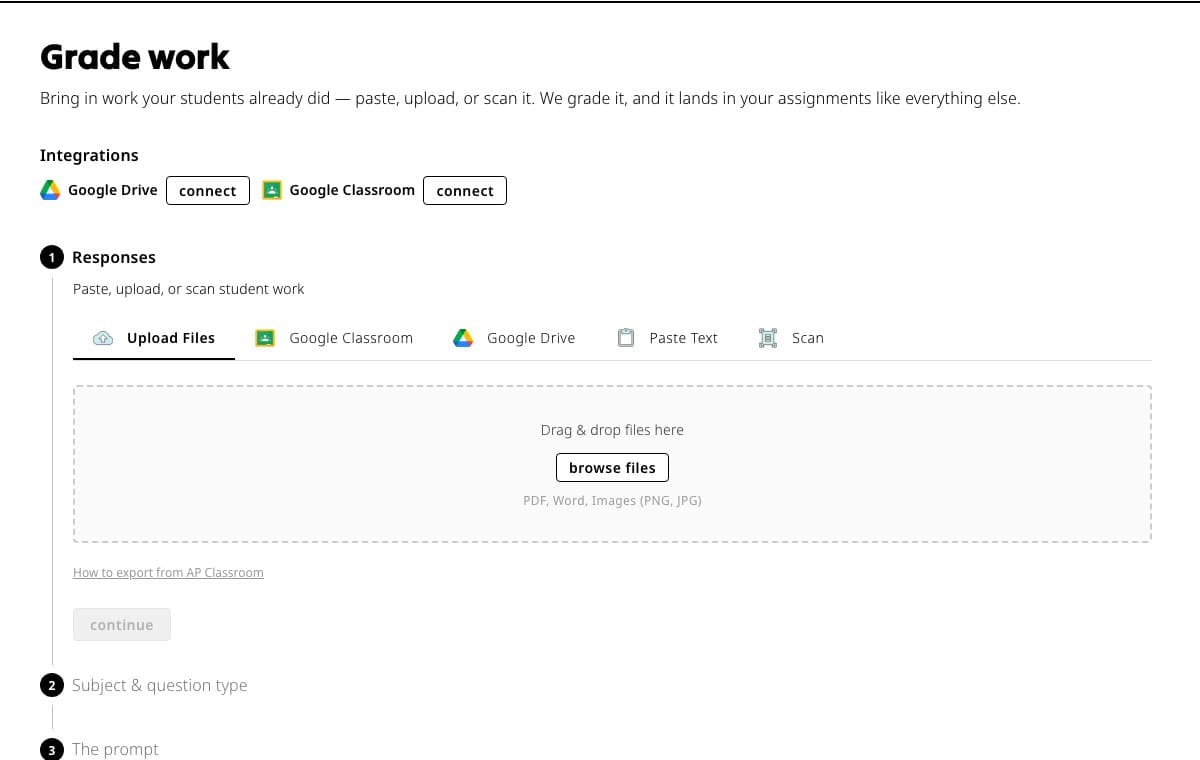
All five response sources begin in the same Responses step, so choose the tab that matches where the work lives now. Connect Google when needed
Select Google Drive or Google Classroom and sign in to the Google account that can open the source. Approve only the permissions shown for the import.
Select or add the responses
Choose the source files or class work, or paste the text. Keep the page open while Fiveable processes the set.
Check every row
Confirm each response belongs to the displayed student and that no pages or paragraphs were split into the wrong row.
Continue
Move to Subject & question type only after the response list is correct.
Good to know
- Do not upload material you are not allowed to share or more student information than the grading task requires.
If something is not working
Google Classroom or Google Drive is connected to the wrong account.
Open Account, select Integrations, disconnect that service, then reconnect with the account that owns the work.
A handwritten page is unreadable.
Rescan it in good light, keep the full page flat and in frame, and upload the replacement before grading.
Did this guide answer your question?
Keep going
Review, approve, and export imported grades
Change the Google account connected to Fiveable