What students see when they open an assignment
Follow the student path from your shared link to submission and saved results.
Quick answer
A student opens the assignment link, signs in or creates a Fiveable account, joins the class when prompted, and selects Start assignment. They complete the sections, submit, and return to the same account to see results when your settings allow it.
What to do
Open the link
The link loads the published assignment title and entry screen.
Sign in
Students use a Fiveable account so responses, attempts, and released results stay connected to the right person.
Join the class when asked
A class-specific link shows Join [class]. The student selects Join class before the assignment begins.
Select Start assignment
For a timed assignment, the timer starts now and cannot be paused. Students should be ready before they select Start assignment.
Complete and submit
Students move through the sections, review their work, and submit. Fiveable then follows the result-release and retake settings you chose.
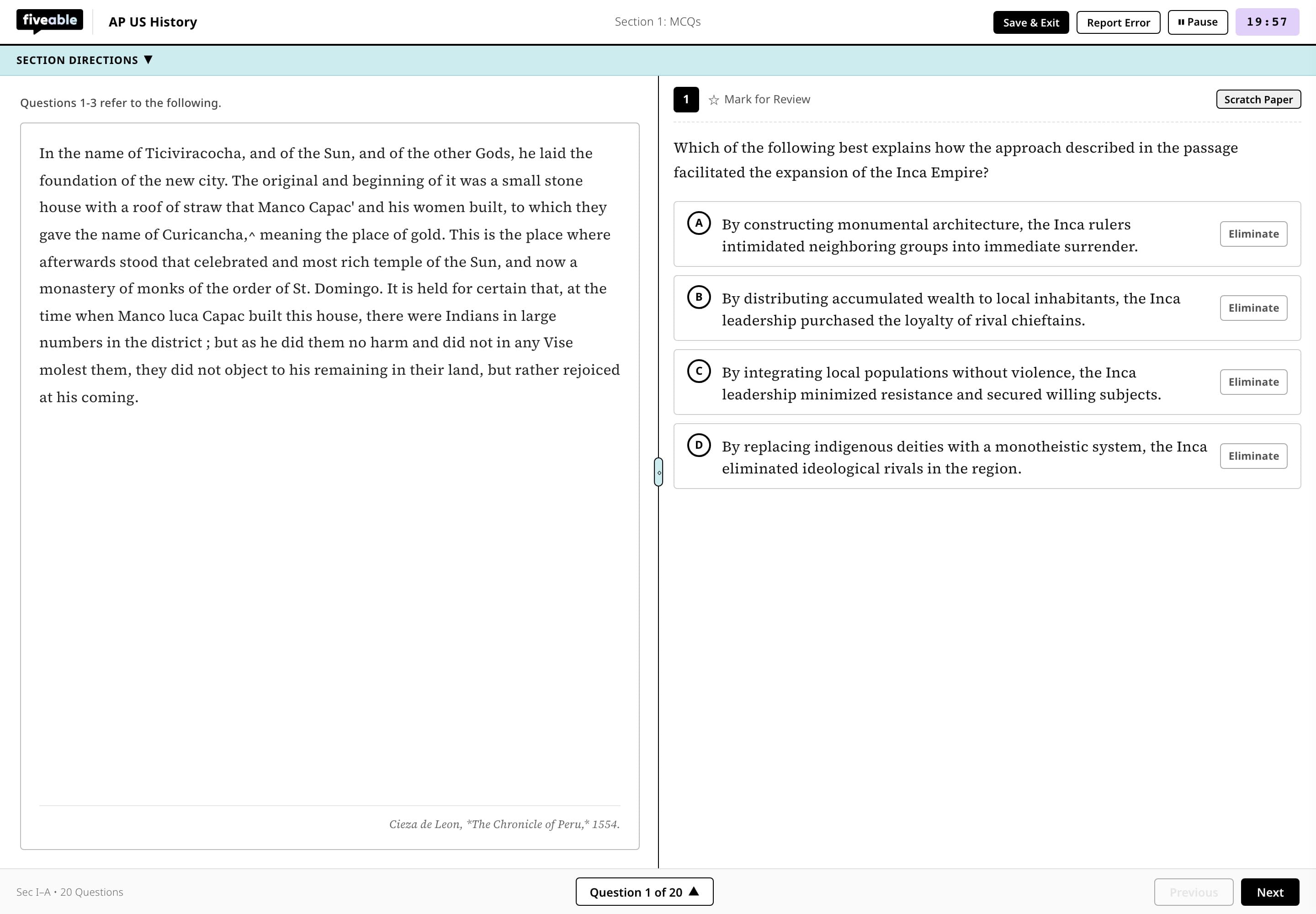
Students complete published work in an exam-style assignment view.
What students see
The assignment screen is modeled after the exam experience, with question navigation, Mark for Review, stimuli where needed, and a timer when you turned one on.
If something is not working
A student says the timer started too early.
The timer begins when the student selects Start assignment, not when they first open the link. A timed attempt cannot be paused after it starts.
A student used the wrong account.
Have the student sign out and reopen the link with the correct account before starting a new attempt. Contact support before deleting any submitted work.
Did this guide answer your question?