Find and manage every assignment
Filter, group, sort, open, publish, review, or copy a link from the Assignments list.
Quick answer
Open Assignments and use All classes and All statuses to narrow the list. View lets you group by class, subject, or status and sort by recency, submissions, or average grade. Select a row to open it, or use the action on the right for its next step.
What to do
Open Assignments
Open Assignments to see digital assignments and imported grading sessions in one list.
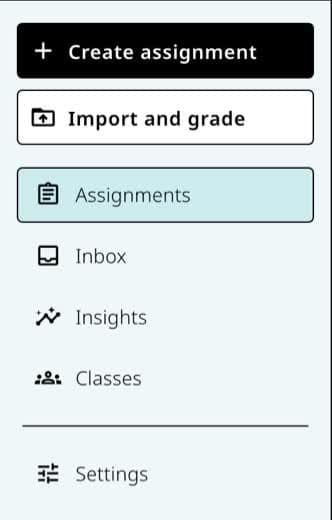
Assignments is the main list for drafts, published work, and imported grading sessions. Filter the list
Choose a class when class filters are available. Under All statuses, choose Drafts, Collecting responses, Scheduled, Needs review, Closed, or Handed back.
Change the view
Select View to group by No grouping, Class period, Subject, or Status. Sort by Most recent, Submissions, or Average grade.
Use the row action
A row may offer Publish, Review [number], Insights, Copy student link, or Open depending on its current state.
Open more results
Select Load more assignments when the list has additional rows.
Good to know
- Assignments can be deleted from inside an assignment. Deletion is permanent, so verify the title and response history first.
If something is not working
An assignment disappeared after I set a filter.
Select Clear filters or return the class and status controls to All classes and All statuses.
I cannot find an old imported grading session.
Choose All statuses, sort by Most recent, then use Load more assignments. Older legacy sessions may instead live at /frq/grading.
Did this guide answer your question?